

Get started
1
Open AI Context
Go to Settings → AI Context.
2
Paste your website
Enter your website address. The AI reads it and fills in your business, audience, voice and products.
3
Review and save
Fix anything that’s off, add what’s missing, then click Save.
4
Add your logo and colours
Go to Settings → Brand and upload your logo, then pick your colours and fonts.
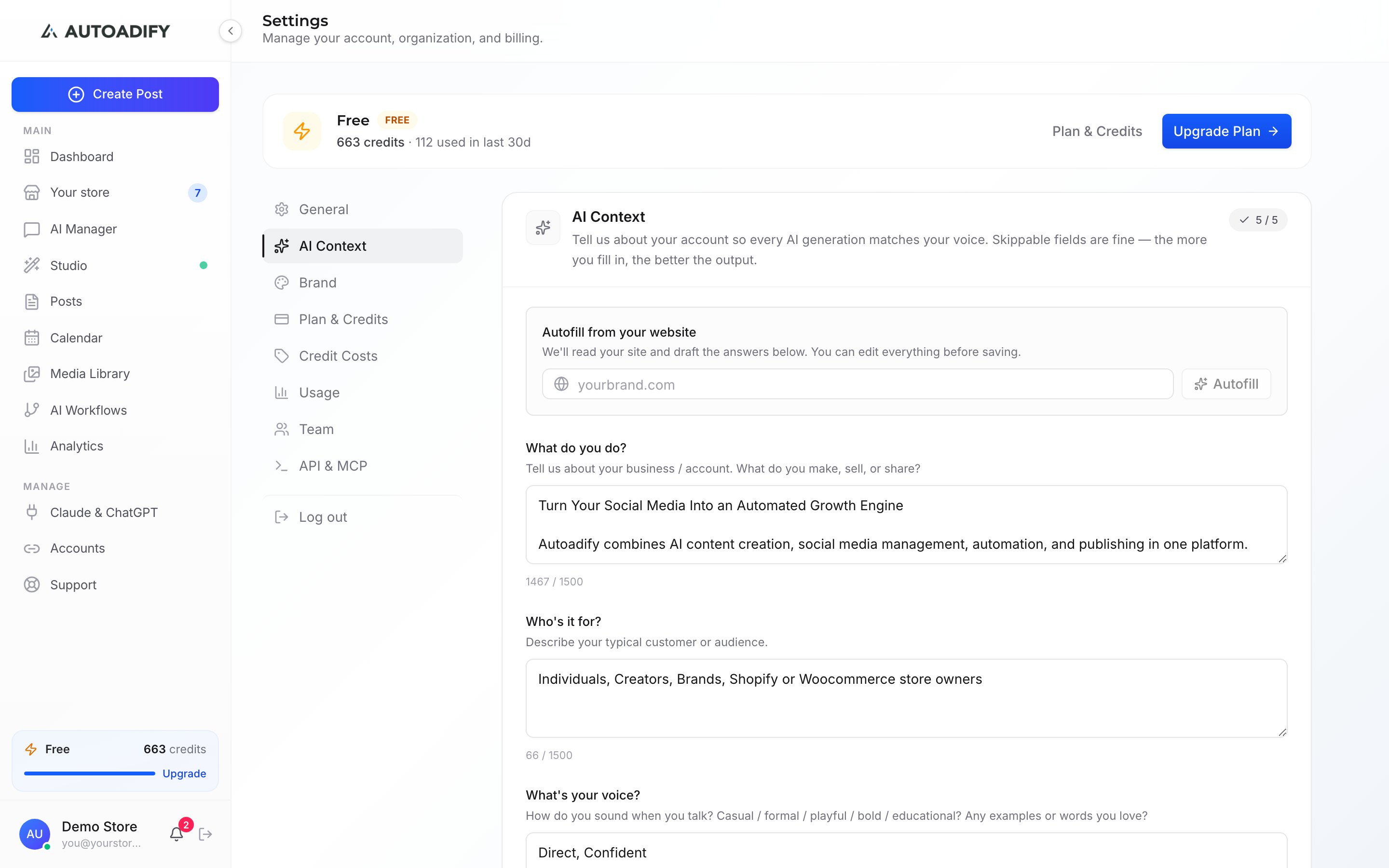
AI Context filled in from a website
How it’s used
- Captions follow the voice and audience you describe.
- Designs in Studio start with your logo, colours and fonts.
- AI images include your logo when you tick it in the AI Manager or Studio.