

Get started
1
Open Create Post
Go to Posts → Create Post, or click Create post on the Dashboard or Calendar.
2
Pick accounts
Under Publish to, tick the accounts to post to.
3
Write and add media
Type your text and add a photo or video.
4
Post or schedule
Under When to publish, choose Now or pick a date and time.
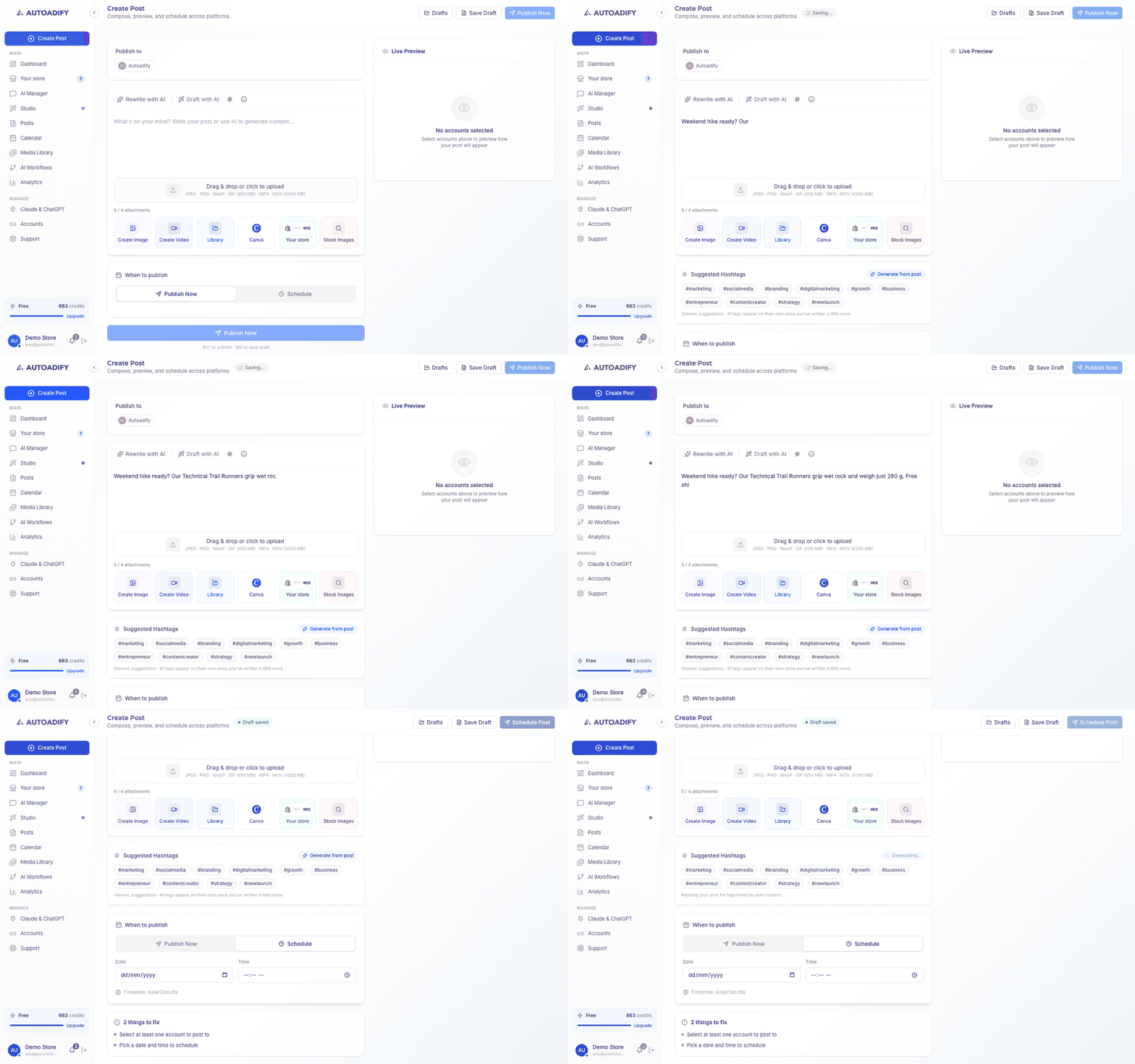
Writing a post, getting hashtag ideas, and picking Schedule
How to use it
Write with AI
- Draft with AI: say what you want to write about.
- Rewrite with AI: choose what to change (Improve, Shorter, Longer, Punchier, Fix grammar) and a tone (Professional, Casual, Humorous, Inspirational).
- Hashtags: one click for suggestions.
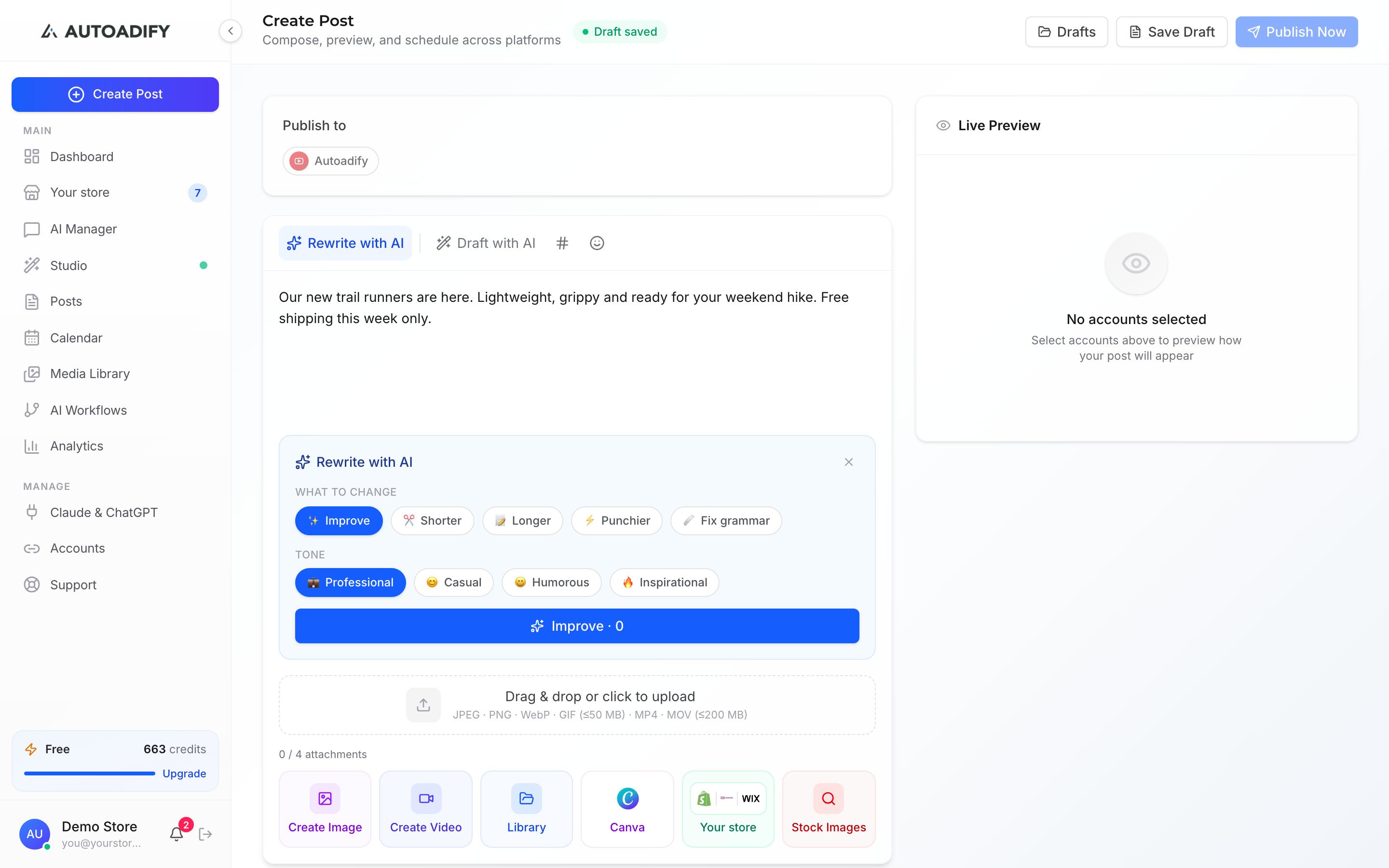
Rewrite with AI
Pick a product from your store
You don’t need to leave the composer to post a product. Click Your store under the text box, search or filter by store, and click the product.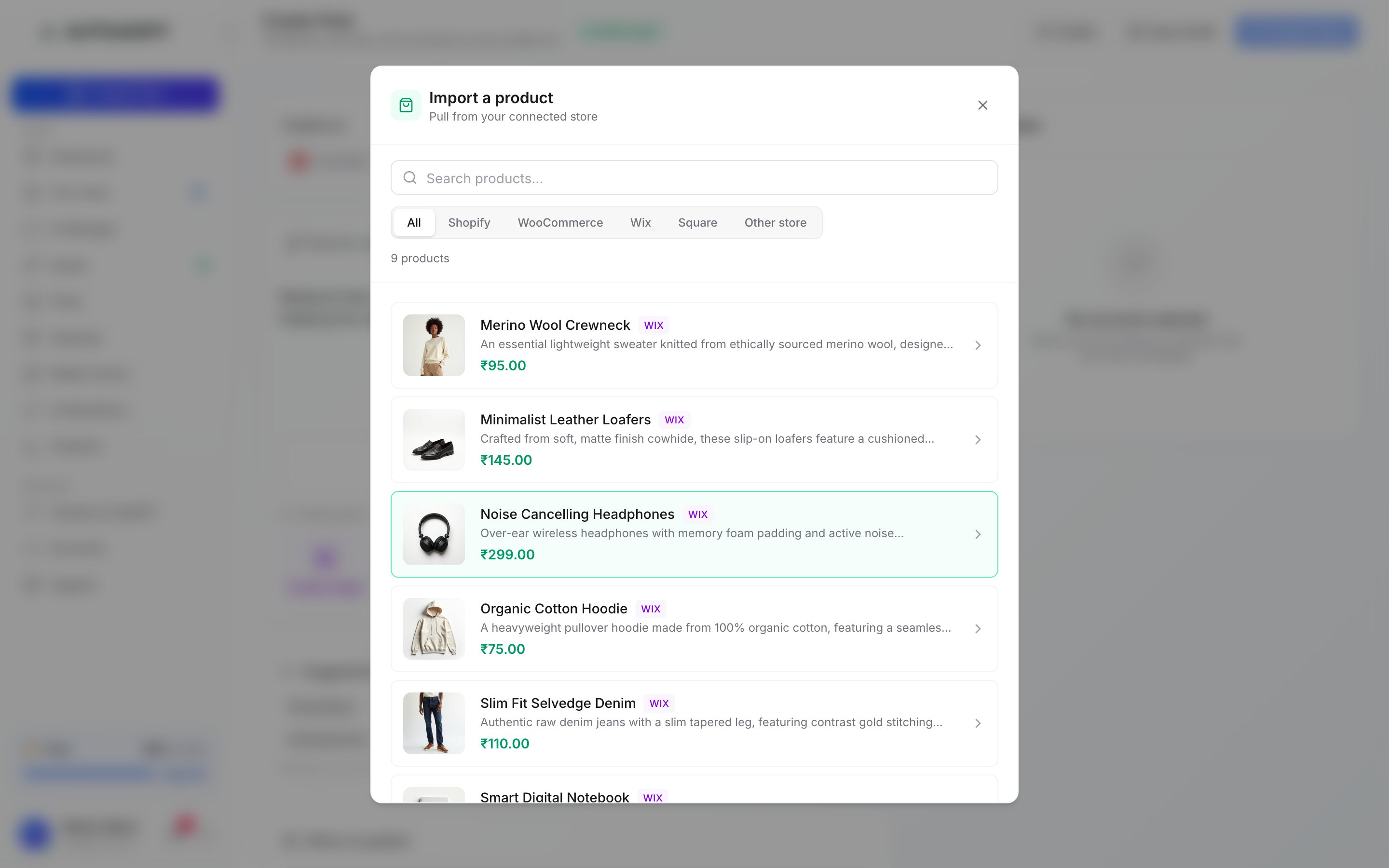
Import a product: every product from your connected store, with photo and price
- The product photo is attached.
- The description and price are added to the text, ready to edit.
Generate an image right here
Click Create Image under the text box. You never leave the post you’re writing.1
Pick a model
The best model is chosen for you; the card shows its price (for example 4 credits). Open the list to choose from 15 image models.
2
Describe the image
Type what you want, or click Use post content and the AI writes the image prompt from your post text.
3
Generate
Click Generate Image. It’s attached to your post when it’s ready, and saved to your Media Library.
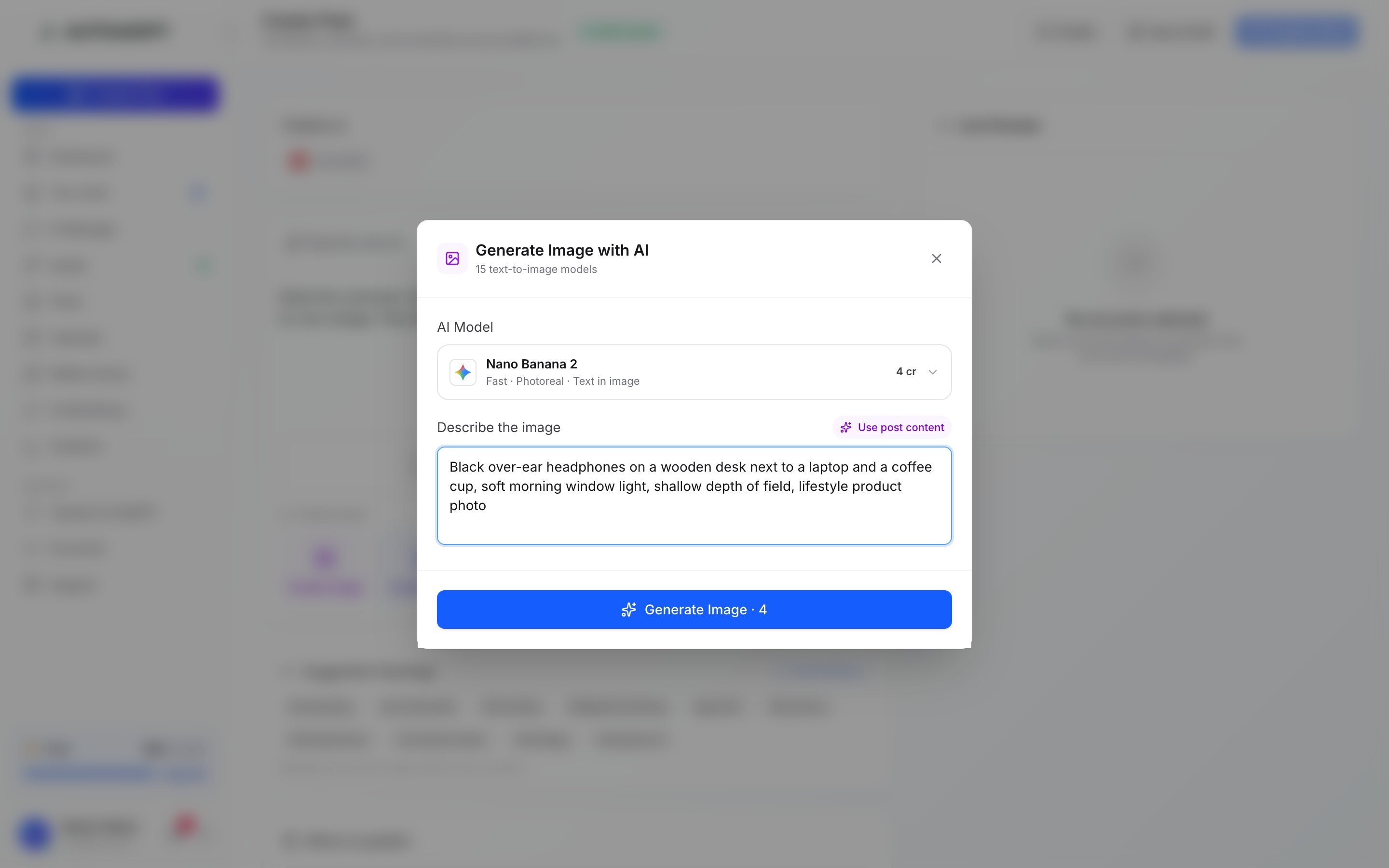
Generate Image with AI, inside the composer
Generate a video right here
Click Create Video under the text box.1
Pick a model
Choose from 20 video models. Each shows what it’s best at (talking video, B-roll, cinematic) and its price per second.
2
Pick length and shape
Choose the duration (for example 4, 6 or 8 seconds) and 16:9 Landscape or 9:16 Portrait. Use 9:16 for Reels, TikTok and Shorts.
3
Describe the video
Type the shot, or click Use post content to write it from your post.
4
Generate
The button shows the total price. The video renders in a few minutes and is attached when ready; you can keep editing meanwhile.
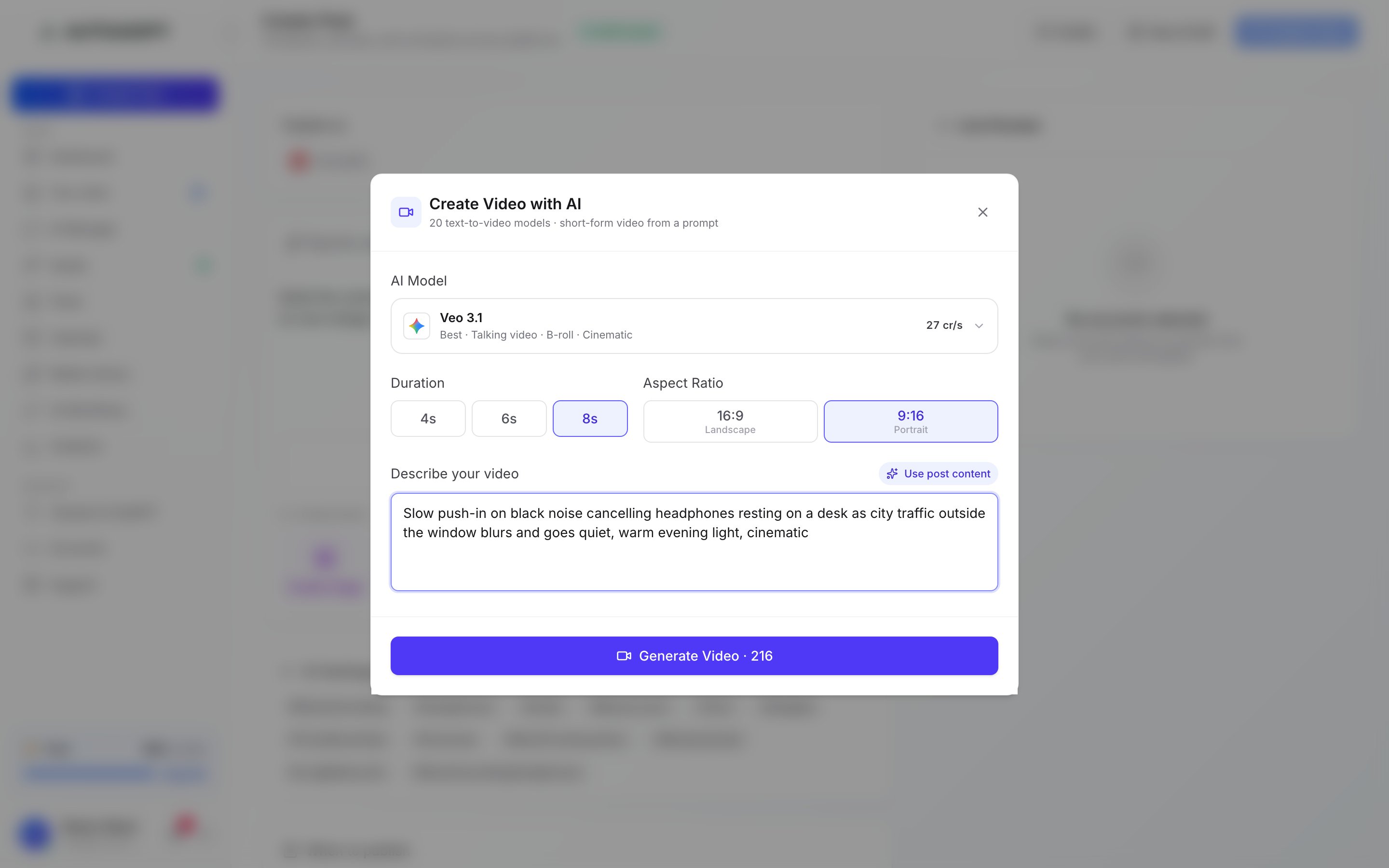
Create Video with AI, inside the composer
Other ways to add media
You can attach up to 4 files per post.
Check the preview
Tick an account under Publish to and Live Preview shows the post as it will look on that platform. With several accounts ticked, switch between them with the tabs.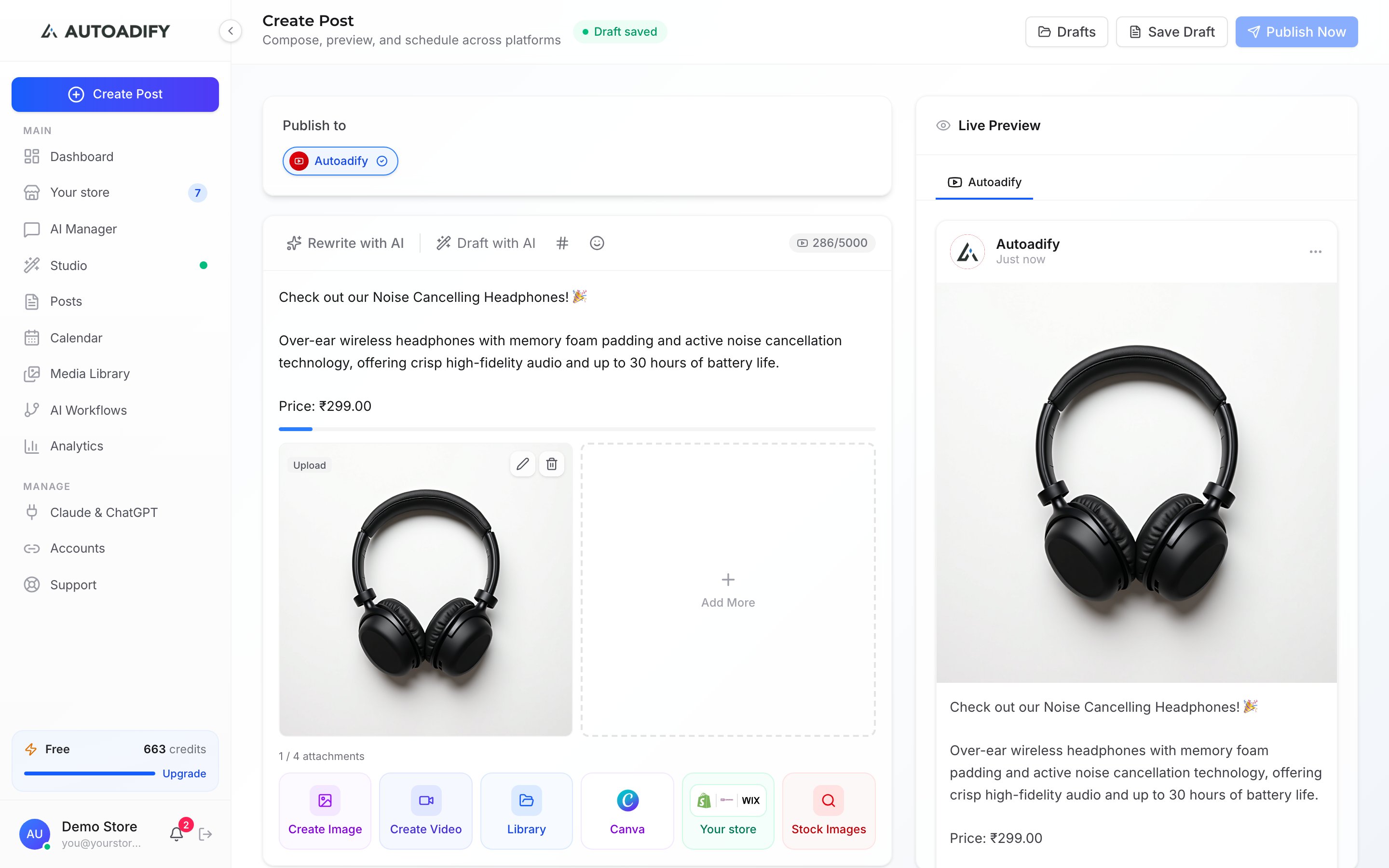
Live Preview: the post as it will appear
Platform options
- TikTok: who can view, whether comments and duets are allowed, and branded content disclosure.
- Reddit: subreddit and title.