

Get started
1
Open Calendar
Click Calendar in the sidebar. The Upcoming list shows what’s next.
2
Click a post
See its details, edit the text, or change the time.
3
Add a post on a day
Click an empty day, or Create post.
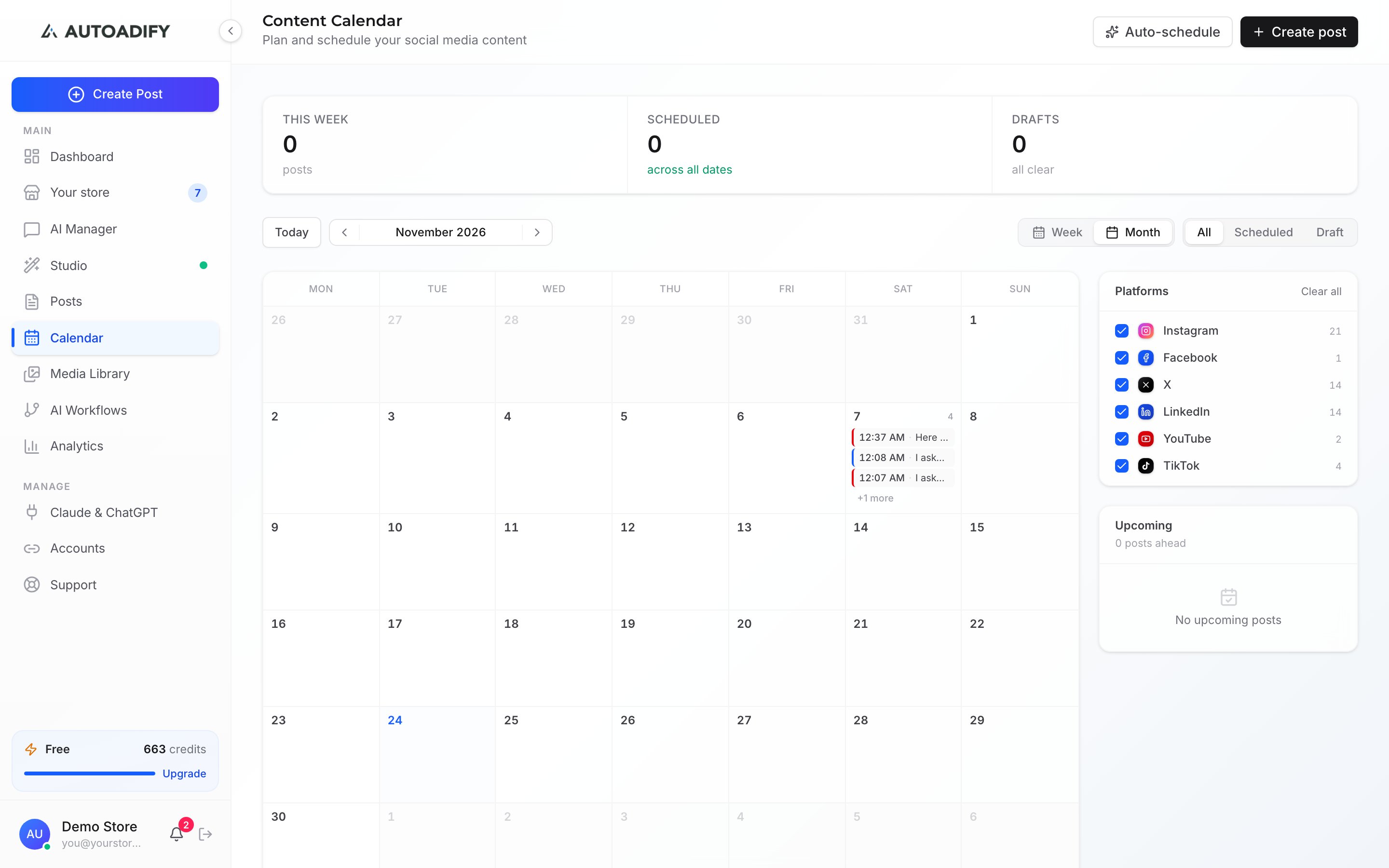
Calendar month view
How to use it
Reschedule
- Click the post on the Calendar.
- Click Reschedule.
- Pick the new date and time, then click Save.
Delete or remove
- Delete a scheduled post and it won’t go out.
- Remove a published post from your calendar and it stays live on the platform.
Posts list
- Filter by Status (Draft, Scheduled, Publishing, Published, Failed) and Platform, or search.
- Refresh stats pulls the latest likes, comments and views.
- Export downloads your posts.
Fix a failed post
Open the post to read the platform’s reason.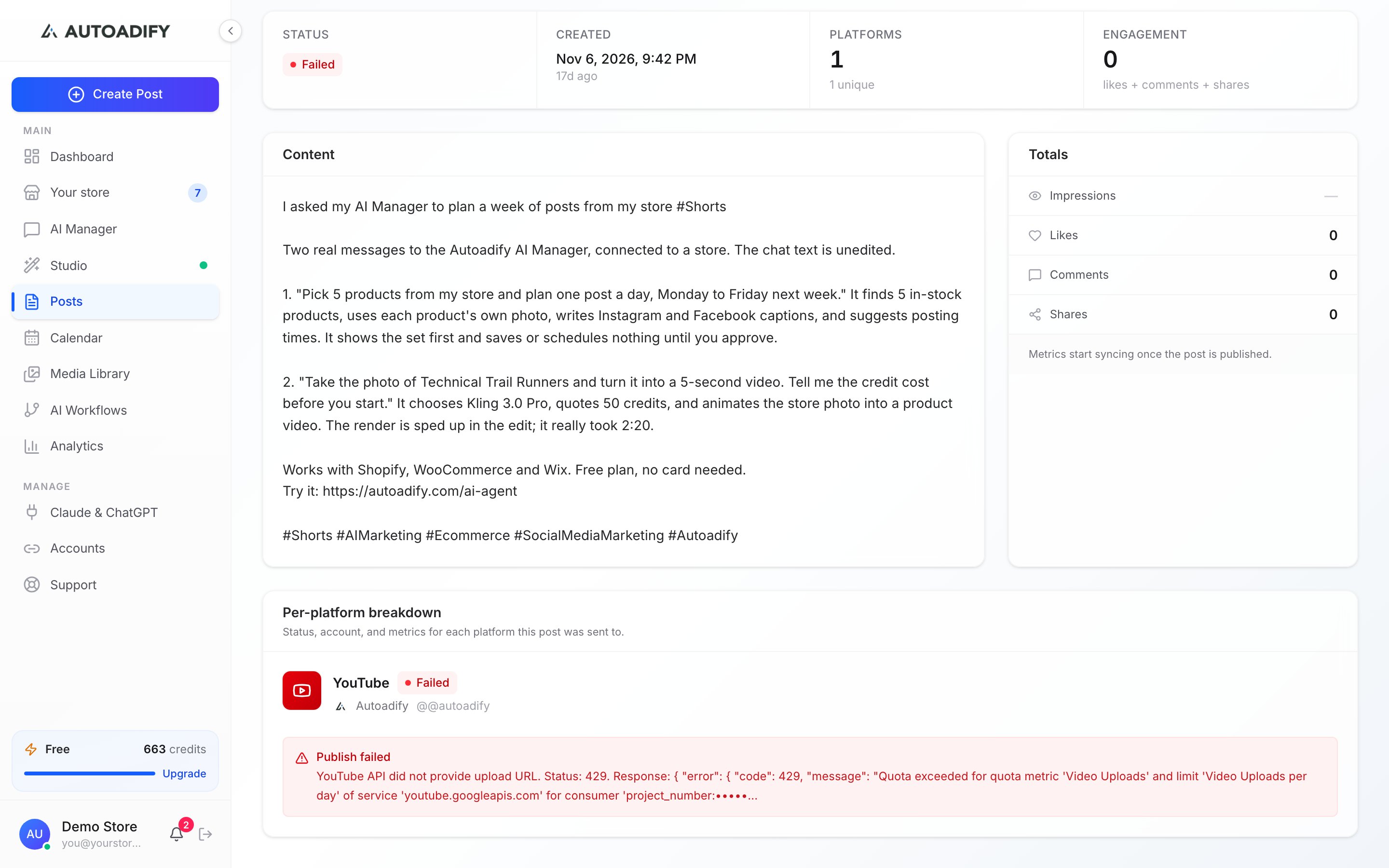
A failed post with its reason
- If the account shows Reconnect required, reconnect it on Accounts.
- Check the media suits the platform (TikTok and YouTube need video).
- Check the text is within the platform’s limit.
- Retry.