

Where to find them
The bell sits at the bottom of the sidebar, next to your name. A red badge shows how many you haven’t read yet.1
Open the bell
Click the bell to see your latest notifications, newest first.
2
Click one to act on it
Clicking a notification marks it as read and takes you to what it’s about: the post on your Calendar, your AI Manager chat, your weekly store plan or your support request.
3
Read the details
Long notifications show Read more to expand the full message.
4
Clear the badge
Click Mark all to mark them all as read at once.
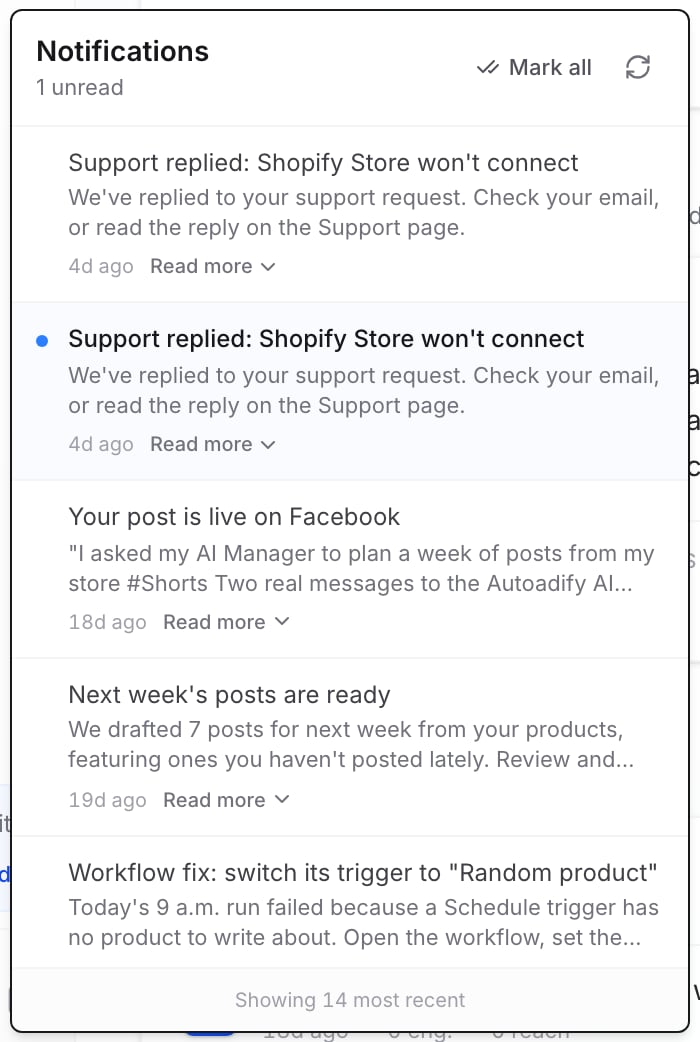
The bell: support replies, post results and your weekly posts
What you’re notified about
Where notifications arrive
Workflow Send alert steps let you choose the channels for that alert yourself.
Good to know
- Stay in the loop while you work elsewhere. If you close the AI Manager mid-request, it carries on, and the bell tells you when it’s done or needs you.
- Nothing is lost. Clicking a notification only marks it as read; the post, chat or plan it points to is unchanged.
- Team workspaces: notifications about a post or chat go to the person who started it; workspace-wide alerts go to everyone.