

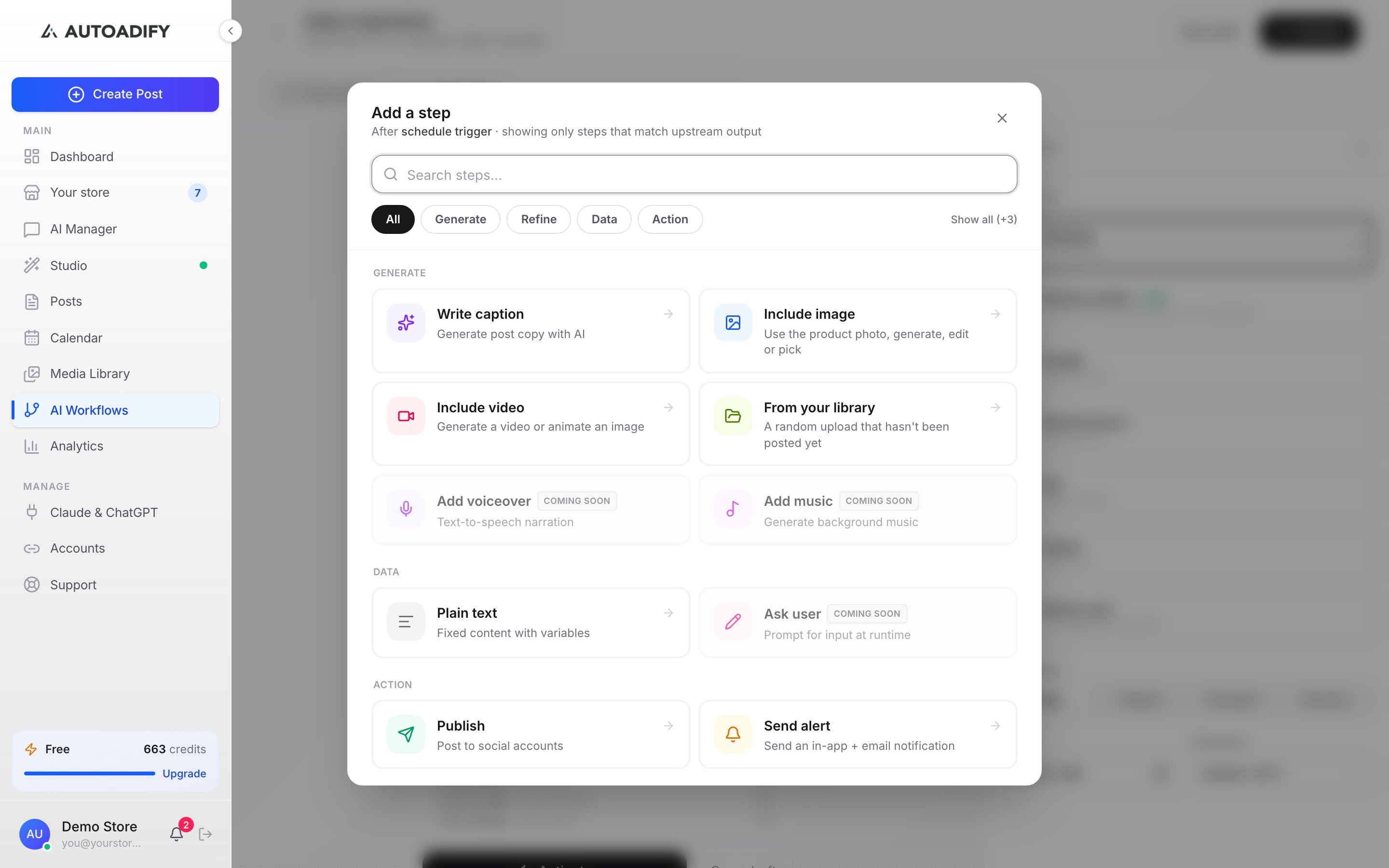
Add a step
Voiceover, background music and “Ask user” steps are coming soon.
Write caption
Pick the AI model, the Platform it’s written for, a Tone (Professional, Casual, Funny, Viral, Inspiring), and write the Prompt: what the post should be about.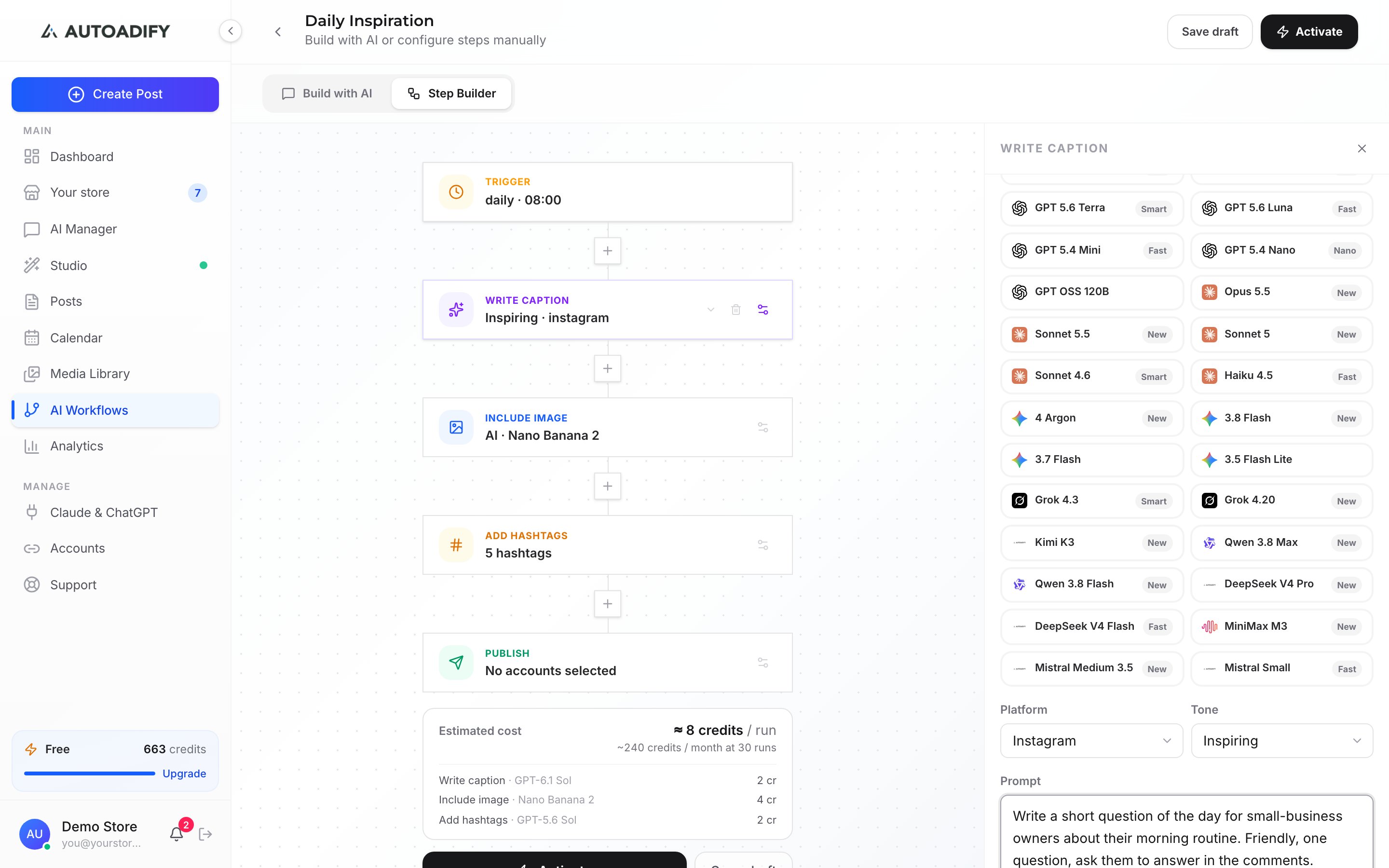
Write caption with a prompt for a daily question post
Write a short question of the day for small-business owners about their morning routine. Friendly, one question, ask them to answer in the comments.The caption step knows the date it runs and your recent posts, so a daily workflow doesn’t repeat itself.
Choosing a caption model
Captions cost 0–2 credits whichever model you pick, so choose by the kind of writing:
Example: a daily “tip of the day” for Instagram runs fine on GPT-6 Luna. A weekly LinkedIn story about your business reads better on Claude Sonnet 5.5.
Include image
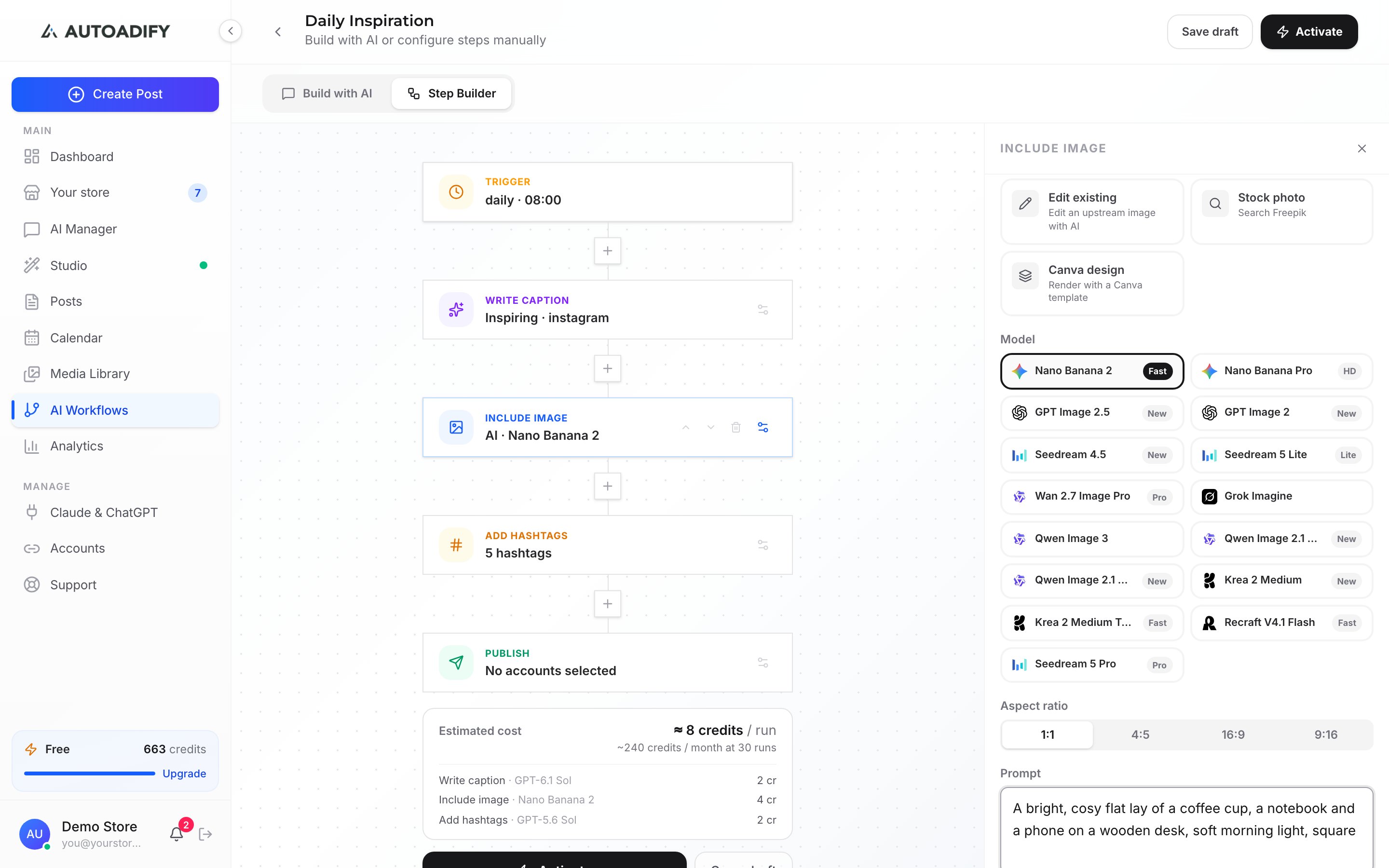
Include image: generate with AI, with model, ratio and prompt
Choosing an image model (Generate with AI)
Each model card shows its credit cost. These are good starting points:
Examples:
- “Flat-lay of wireless headphones on a wooden desk, morning light, coffee cup beside them” → Nano Banana 2, 4:5 for the Instagram feed.
- “Bold poster that says ‘20% OFF THIS WEEKEND’ in large white letters on a red background” → GPT Image 2.5, 1:1. It spells the words correctly.
- “Simple flat illustration of a sun rising over mountains, pastel colours” for a daily quote post → Recraft V4.1 Flash, 1 credit a run.
Choosing an edit model (Edit existing)
Use this when an earlier step (or the product photo) already gives you the image and you want to change it while keeping the product the same.
Example: with a store trigger, “Place this product on a marble bathroom shelf with soft daylight and a small plant” → Nano Banana 2. The product stays the same and only the scene around it changes. Check the first run’s result before you turn the workflow on.
Include video
- Generate with AI: a short video from a prompt. Leave the prompt blank to use the video idea the caption step wrote.
- Animate an image: brings the product photo, or an image from an earlier step, to life.
Choosing a video model
Video is the most expensive step: it’s charged per second, so a 10-second clip costs about twice a 5-second one. The step shows the exact cost for the model and length you pick, and a workflow that runs every day repeats that cost every day. Generate with AI (from a prompt):
Animate an image (brings a photo to life):
Examples:
- Store trigger, product photo → “Slow 360° turn of the product on a white table, soft studio light” → Animate an image with Kling 3.0 Pro i2v, 9:16 for Reels.
- Weekly brand clip from a prompt → “Close-up of hands packing an order into a kraft box, warm light, shallow depth of field” → Veo 3.1 Fast, 9:16.
- Daily motion post on a small budget → Veo 3.1 Lite, 5 seconds.
From your library
Picks one random photo or video you uploaded that has never been published or scheduled, so nothing goes out twice. AI-generated and stock images aren’t included. It uses no credits.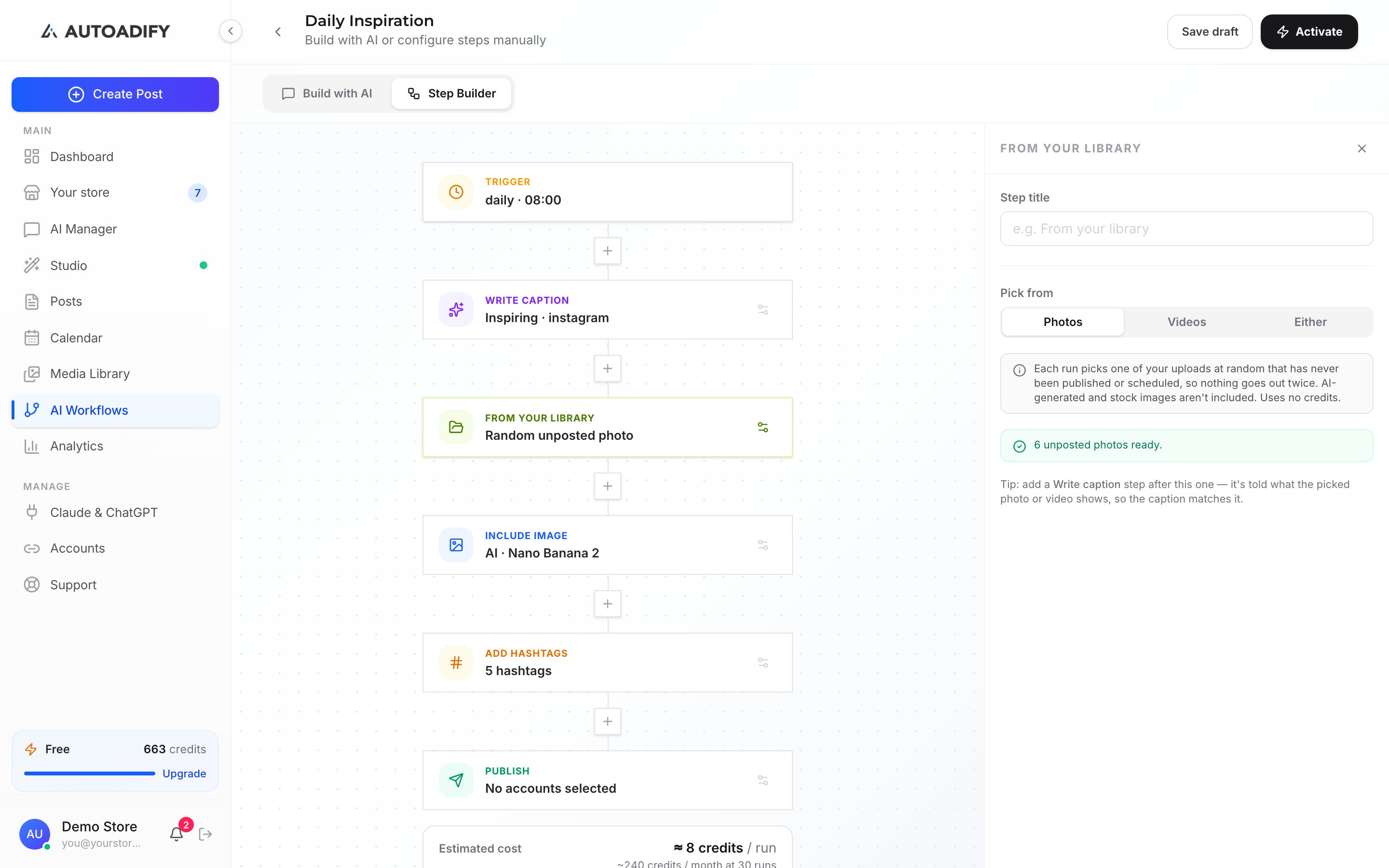
From your library: random unposted photos, videos, or either
- Pick from: Photos, Videos, or Either.
- It shows how many unposted files are ready. When they run out, the run stops and tells you, rather than reposting something.
- Add Write caption after it: the AI is told what the photo shows, so the caption matches.
Publish
Choose the accounts, then the Timing: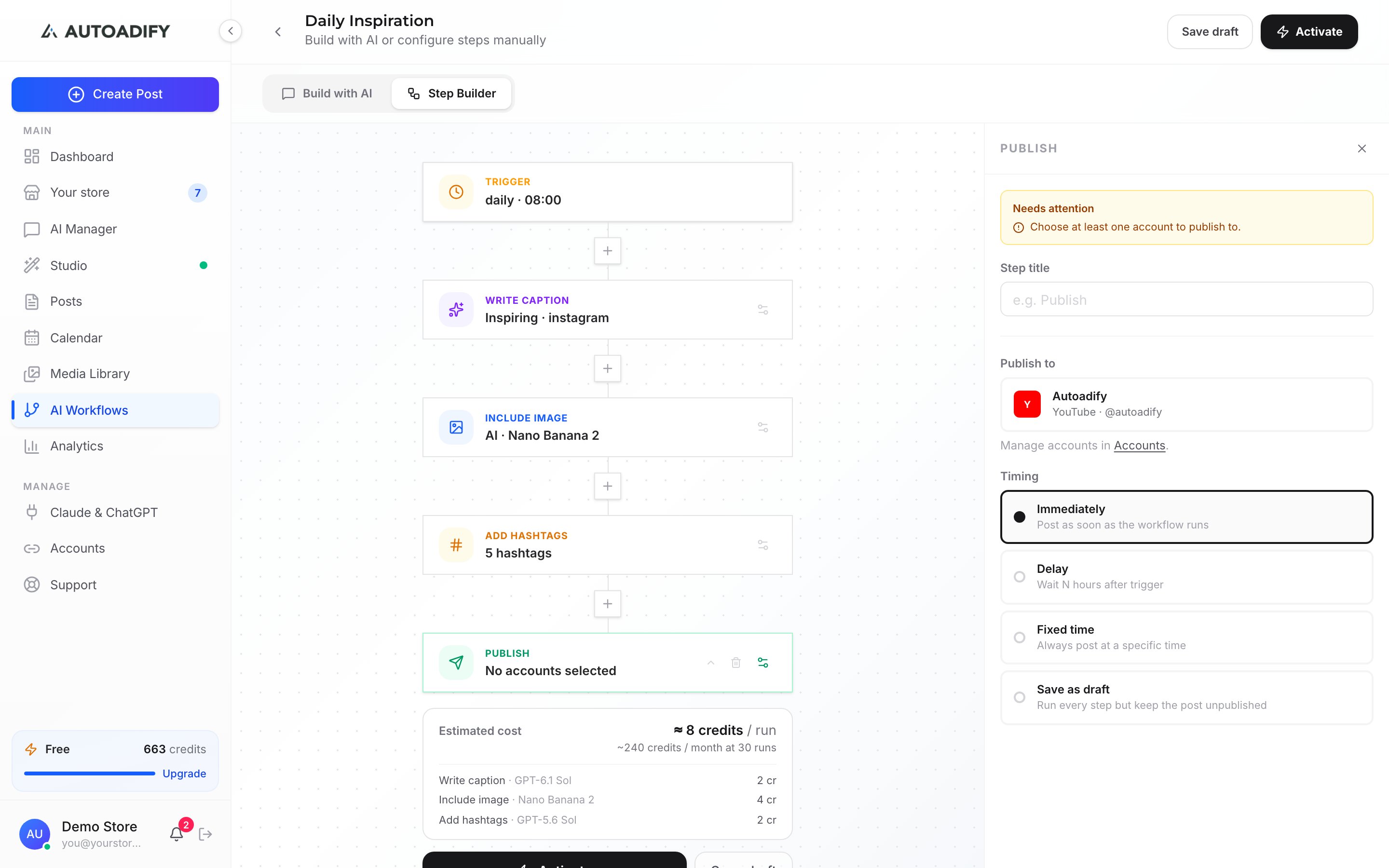
Publish: accounts and timing
Send alert
Notifies you (bell icon in the app, and email) when the workflow runs, for example Auto-posted{{trigger.product.name}}, open the dashboard to review.
Product variables
With a store or random-product trigger, type these in any prompt or plain-text step:
Example plain text: Introducing
{{trigger.product.name}}, now {{trigger.product.price}}. Shop: {{trigger.product.url}}
Post-performance variables
With a Monitor post trigger, you can use these:Using an earlier step’s text
Type{{previous_text}} in a prompt to pull in the text from the step before it, for example Rewrite {{previous_text}} as a short X post.