

Connect your store, check the week we draft from your products, and approve: it goes on your Calendar
- Schedule: a full week of product posts we draft for you. You review and approve.
- Products: your whole catalog. Pick any product, improve its photo, and schedule it whenever you like.
Connect your store
Connect from Your store, or from Accounts → Integrations. Pick your platform for step-by-step instructions:Shopify
Install from the Shopify App Store. 2 minutes.
WooCommerce
Paste a REST API key. 5 minutes.
Wix
Sign in and pick your site. 2 minutes.
Square
Sign in and approve read-only access. 2 minutes.
Any other store
Upload a file, or link a feed or API.
Schedule tab: your week, prepared for you
Every week we prepare a full 7-day schedule from your products: one post a day, each with the product photo, a caption in your voice, the best time to post, and the platforms that suit it. Products you haven’t featured lately come first.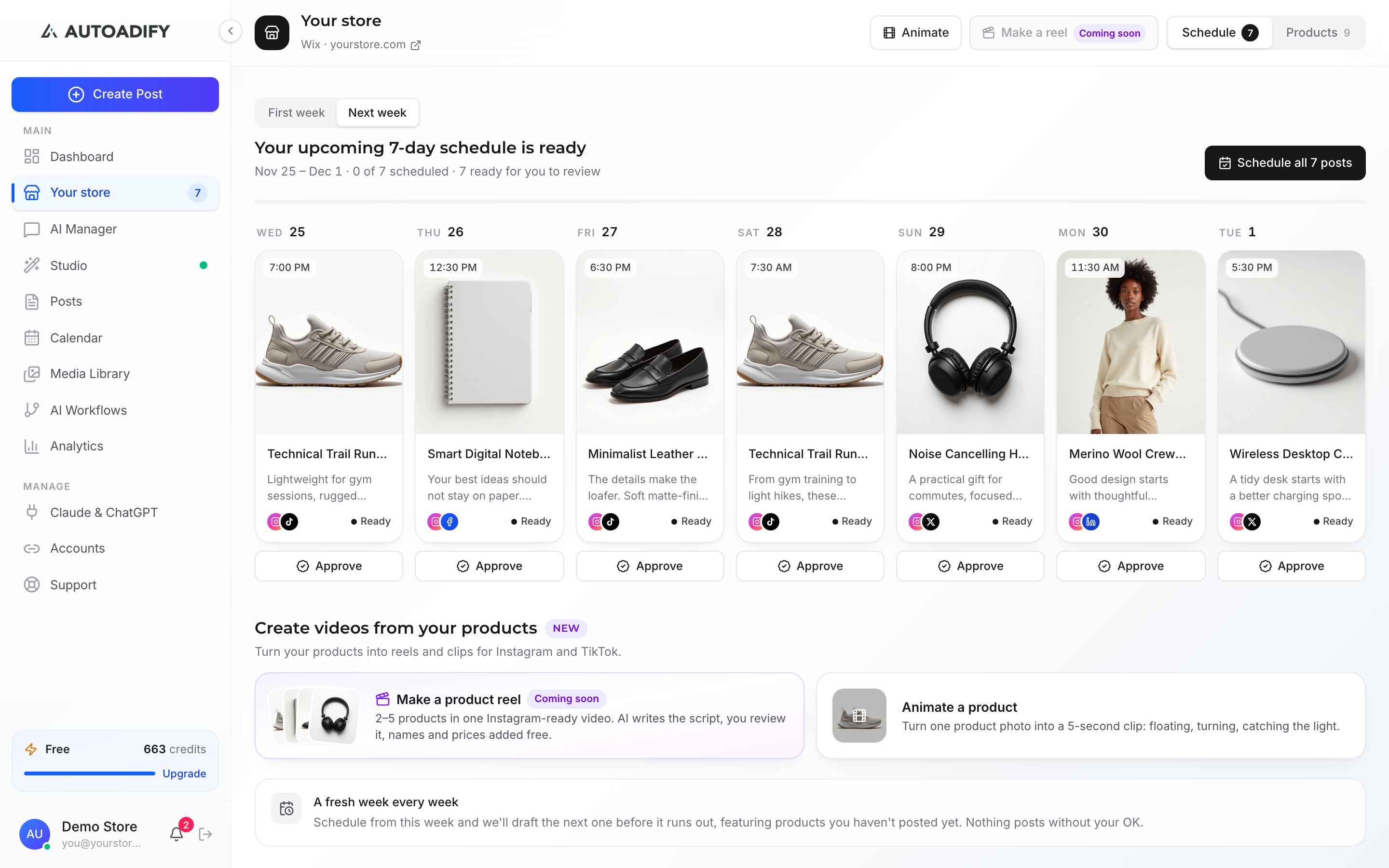
A drafted week: one product post per day, ready to review
Approve one day, or the whole week
- One day: click Approve under that day’s card.
- The whole week: click Schedule all 7 posts at the top.
Change anything on a day
Click a day’s card to open it.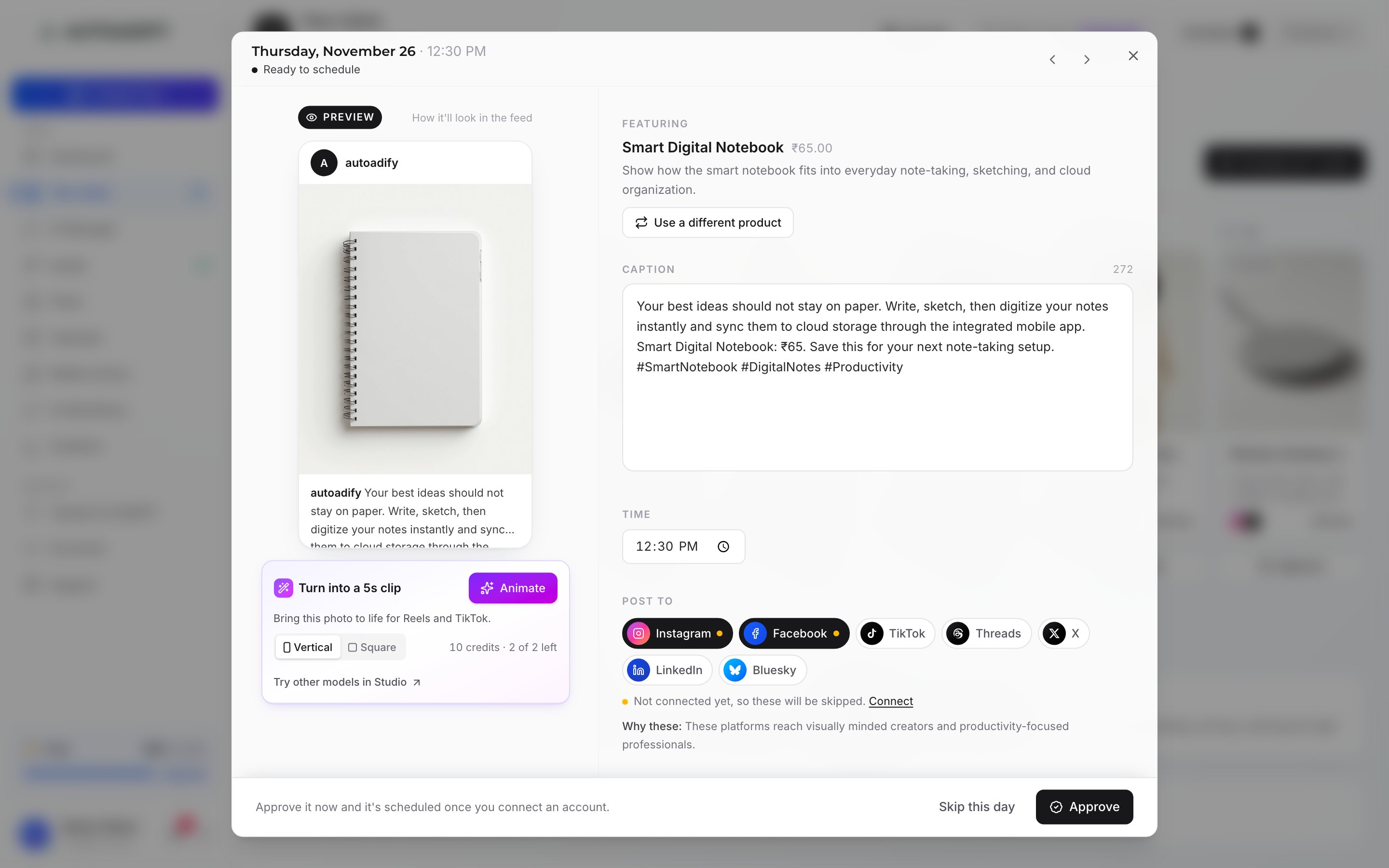
Editing a day: product, caption, time, platforms and animation
The left side shows how it’ll look in the feed as you edit.
To add your logo to a product photo, use the Products tab (below). Logo branding isn’t in the day editor yet.
A fresh week every week
Before your week runs out, we draft the next one, featuring products you haven’t posted yet, and let you know it’s ready to review.Products tab: schedule any product yourself
Want to post a particular product, on your own schedule? Open the Products tab. It shows your whole catalog; products already in this week’s plan are marked In your week.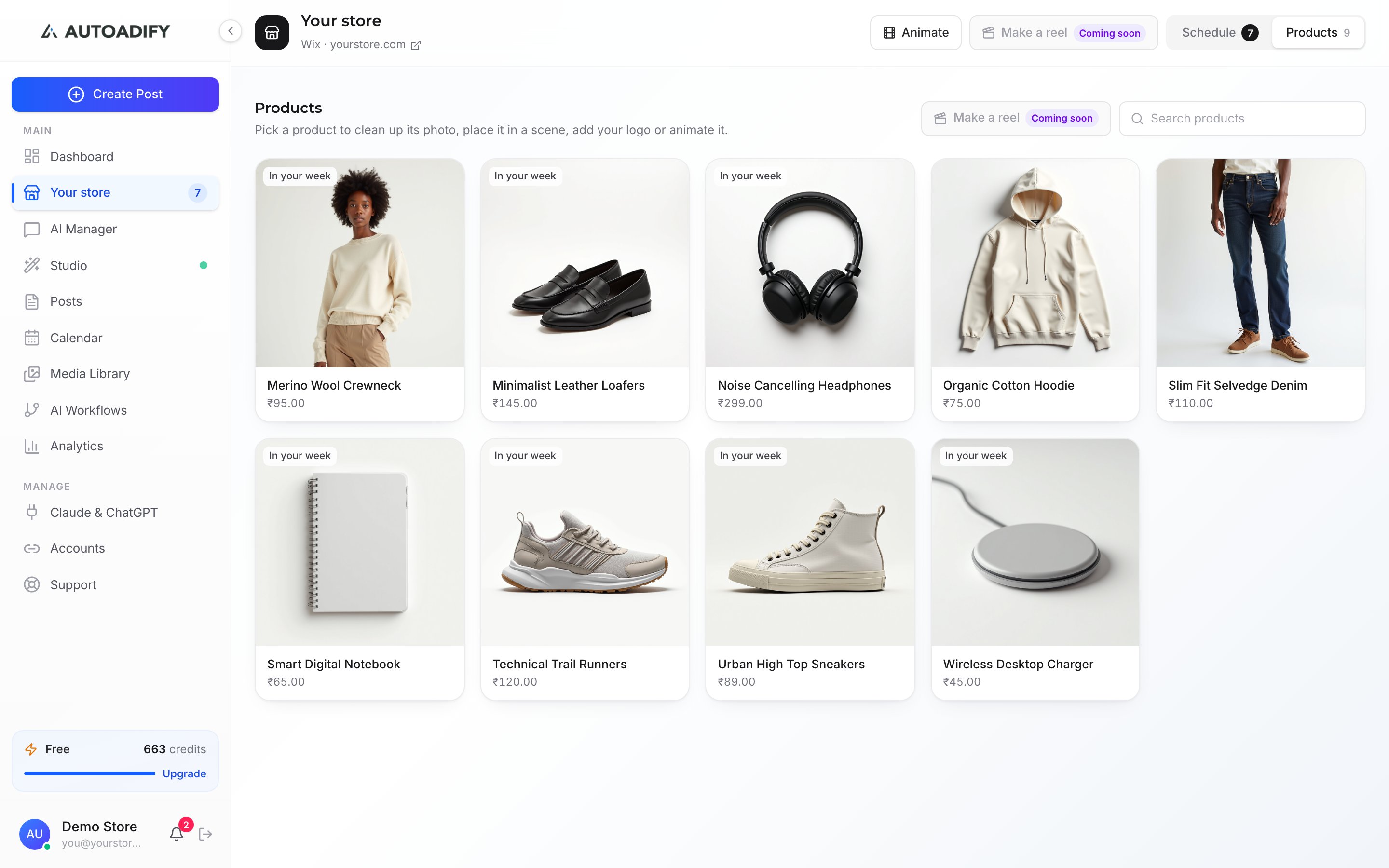
The Products tab: your whole catalog
1
Pick a product
Click it, or search for it at the top.
2
Improve the photo (optional)
Use any of the AI tools below. Each result is added as a new version under the photo, so you can chain them: remove the background, then add your logo.
3
Schedule it
Pick the version you want and click Schedule a post. The composer opens with the photo, product name, description and price filled in. Choose your accounts and a date and time. See Create a post.
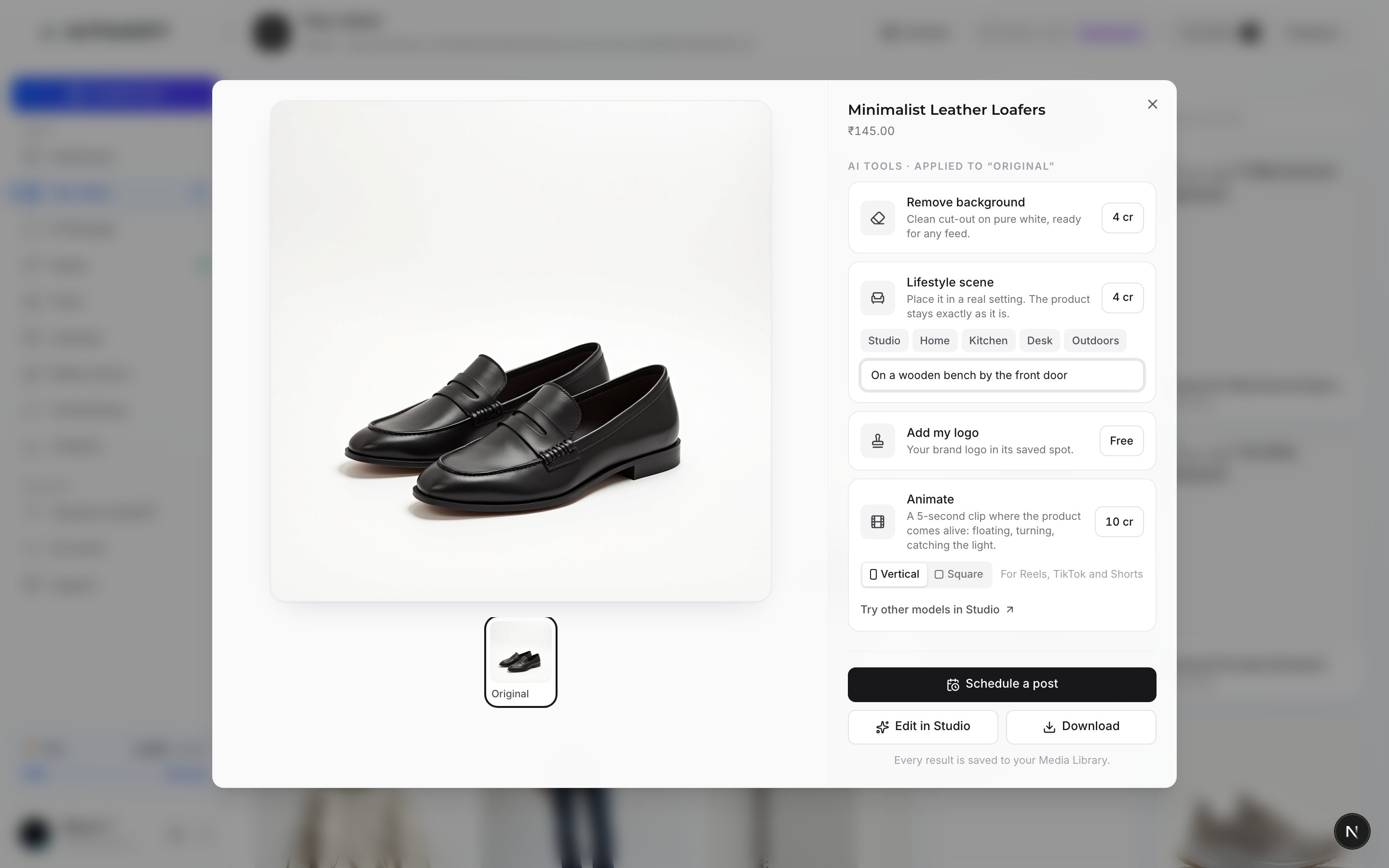
A product's AI tools, with a scene described for the lifestyle shot

Store photo
After Animate: a 5-second clip for 10 credits
Good to know
- Approved days wait as Approved · waiting for an account until you connect a social account, then schedule themselves.
- A day marked Needs attention couldn’t be scheduled; open it to see why.
- The weekly plan needs at least one published product with a photo.
- Product reels (one video from 2–5 products) are coming soon.