

Brand context, playbook and web search
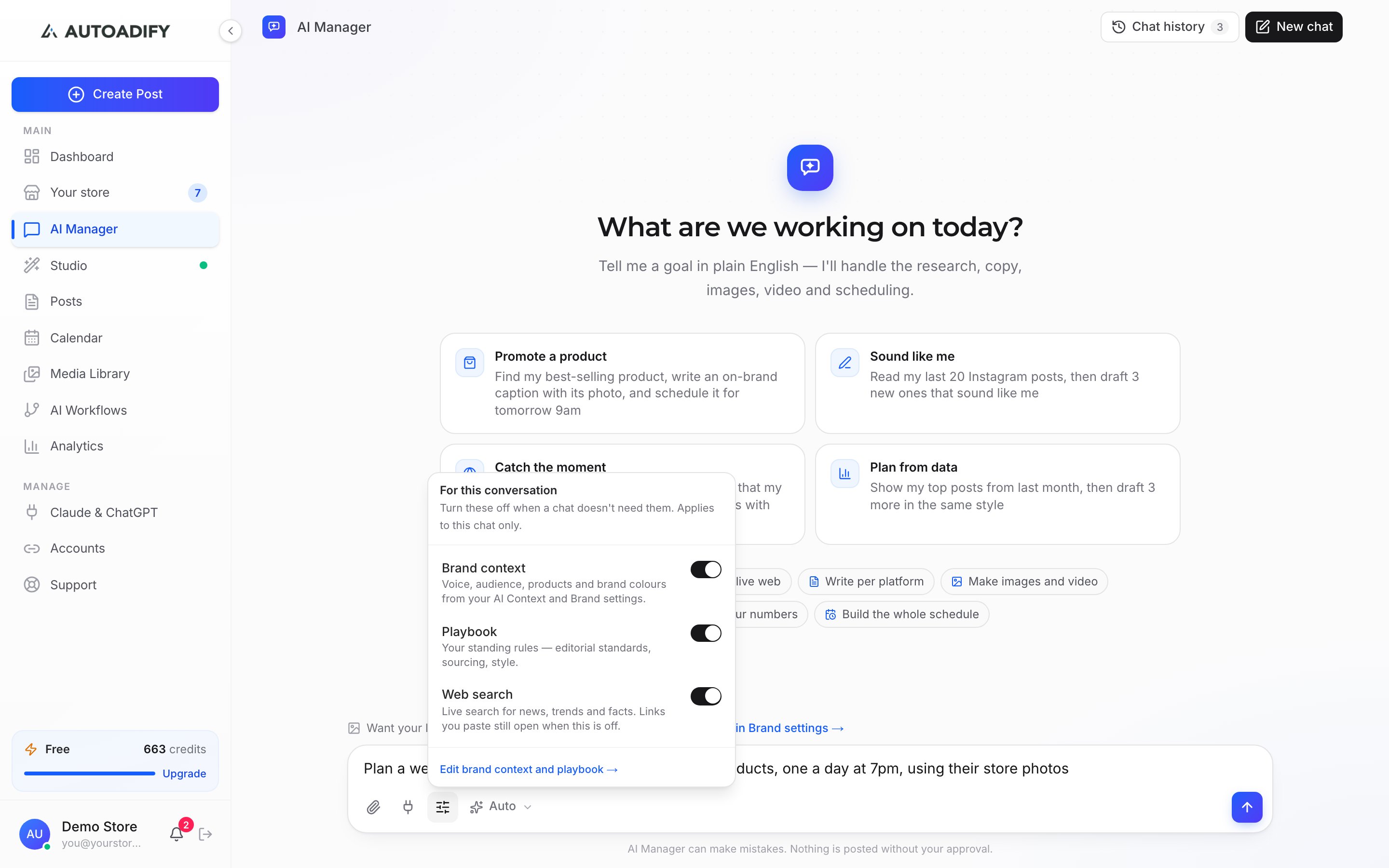
Switches for this conversation
All three are on by default. Turn one off for a chat that doesn’t need it, for example brand context off when writing for a different client. Edit the brand context and playbook with Edit brand context and playbook at the bottom of the panel.
Choose models
By default the AI Manager picks the best model for each job (Auto). To pin one for the whole chat, click Auto and choose from the Image, Video or Copy tab. Each model shows its strengths and credit cost; some are only on paid plans.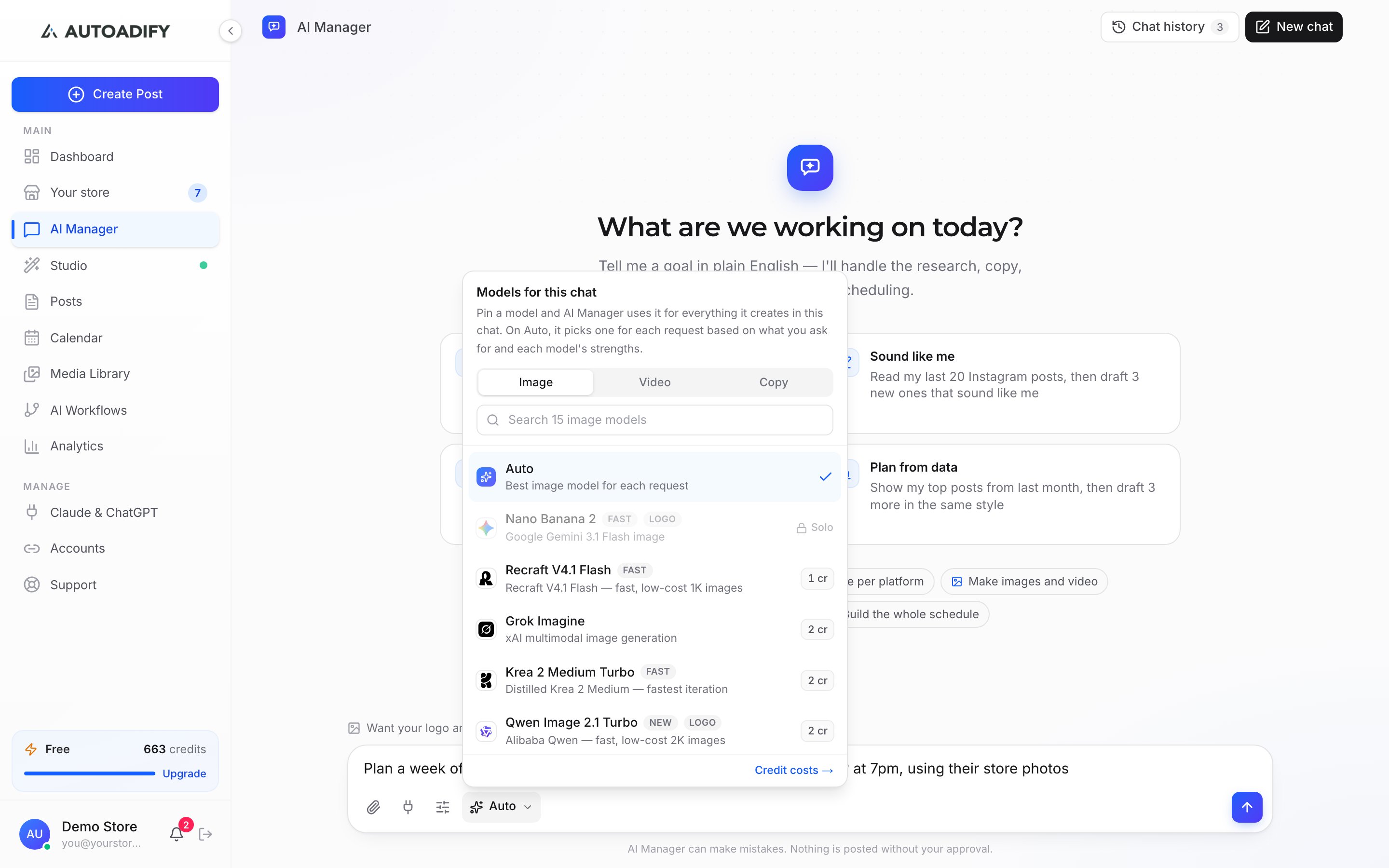
Models for this chat
Your logo and colours in images
When your logo and colours are saved in Settings → Brand, tick them at the top of the chat and every image the AI Manager makes in that chat includes them. You can also ask: add my logo to this image. Adding a logo or a headline is free.Tool servers
On Team and Enterprise plans, connect outside tools (Airtable, Firecrawl, Exa, or any MCP server) and switch them on for a chat. The AI Manager can then use them, for example to read your product sheet in Airtable. Most tools ask for your approval before they run.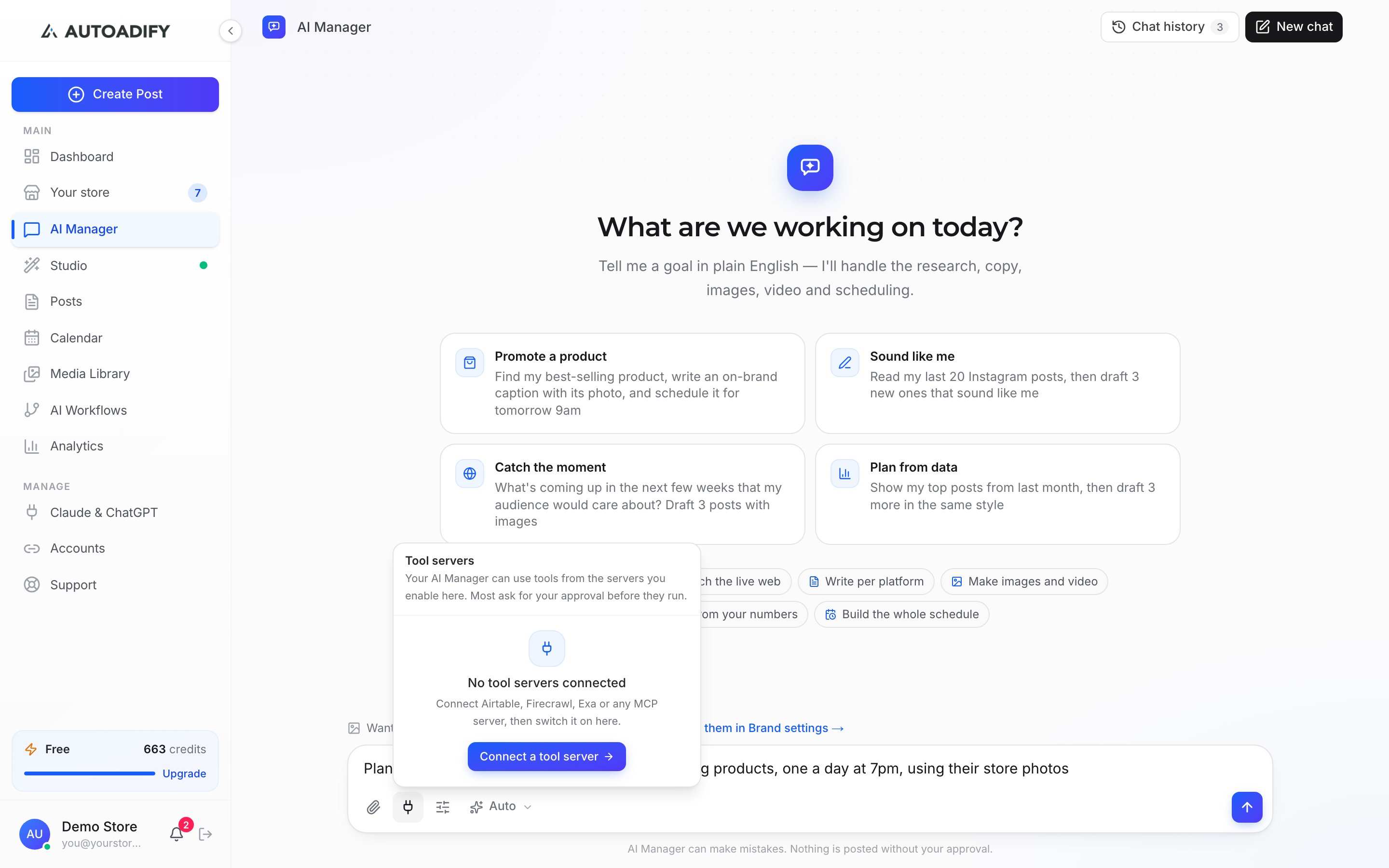
Tool servers for this chat