

Before you start
- You need to be the store owner, or a staff member allowed to install apps.
- Your products need at least one photo each to be used in posts.
Steps
1
Open the connect dialog
In Autoadify, go to Your store (or Accounts → Integrations) and click Connect next to Shopify.
2
Continue to Shopify
Click Continue to Shopify. This opens Autoadify on the Shopify App Store.
3
Install the app
Click Install, choose your store if you have more than one, and approve the permissions. Autoadify only reads your products and never changes your store.
4
Come back to Autoadify
Shopify brings you straight back. You’ll see Shopify connected, syncing your products.
5
Your first week
We sync your catalog and draft your first week of posts. Open Your store → Schedule to review them.
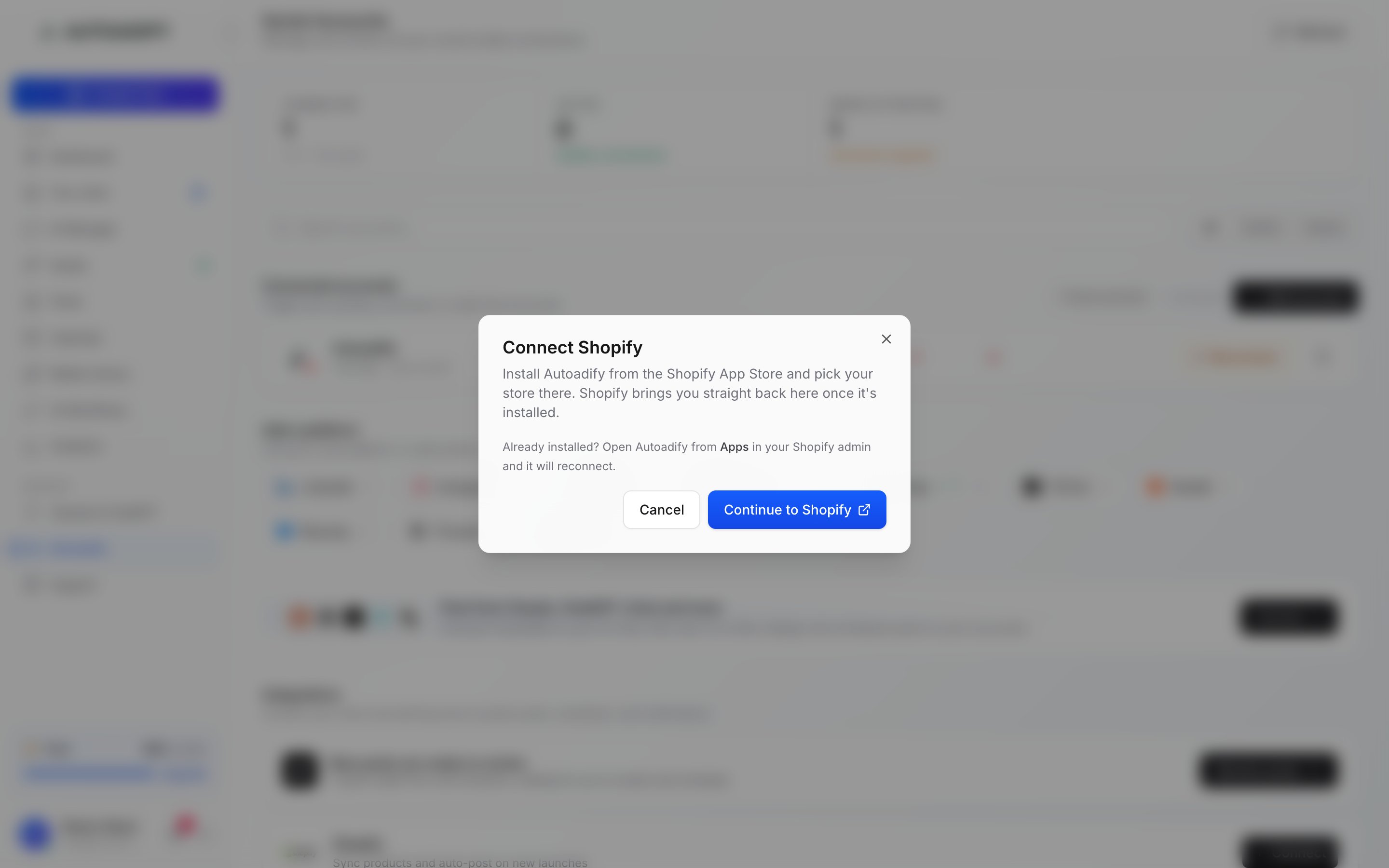
Connect Shopify
After you connect
- New products are picked up instantly. Use them in a new-product workflow to auto-post launches.
- Price, stock and photo changes sync automatically.
- Billing: if you installed from the Shopify App Store, your Autoadify plan is billed through your Shopify invoice.