

Before you start
- You need an administrator login for your WordPress site.
- Your site must use https and have WooCommerce installed.
- In Settings → Permalinks, choose anything except Plain, or the API won’t work.
Part 1: Create the API key in WordPress
1
Open the REST API settings
In your WordPress admin, go to WooCommerce → Settings → Advanced → REST API.
2
Add a key
Click Add key (or Create an API key).
3
Fill in the details
- Description: Autoadify
- User: your administrator account
- Permissions: Read/Write
4
Generate it
Click Generate API key. WordPress shows a Consumer key (starts with
ck_) and a Consumer secret (starts with cs_).5
Copy both now
Copy both into a safe place. WordPress shows the secret only once.
Part 2: Connect in Autoadify
1
Open the connect dialog
Go to Your store (or Accounts → Integrations) and click Connect next to WooCommerce.
2
Paste your details
- Site URL: your store’s address, for example
https://www.yourstore.com - Consumer key: the
ck_…value - Consumer secret: the
cs_…value
3
Connect
Click Connect. You’ll see WooCommerce connected, syncing your products, and your first week is drafted next.
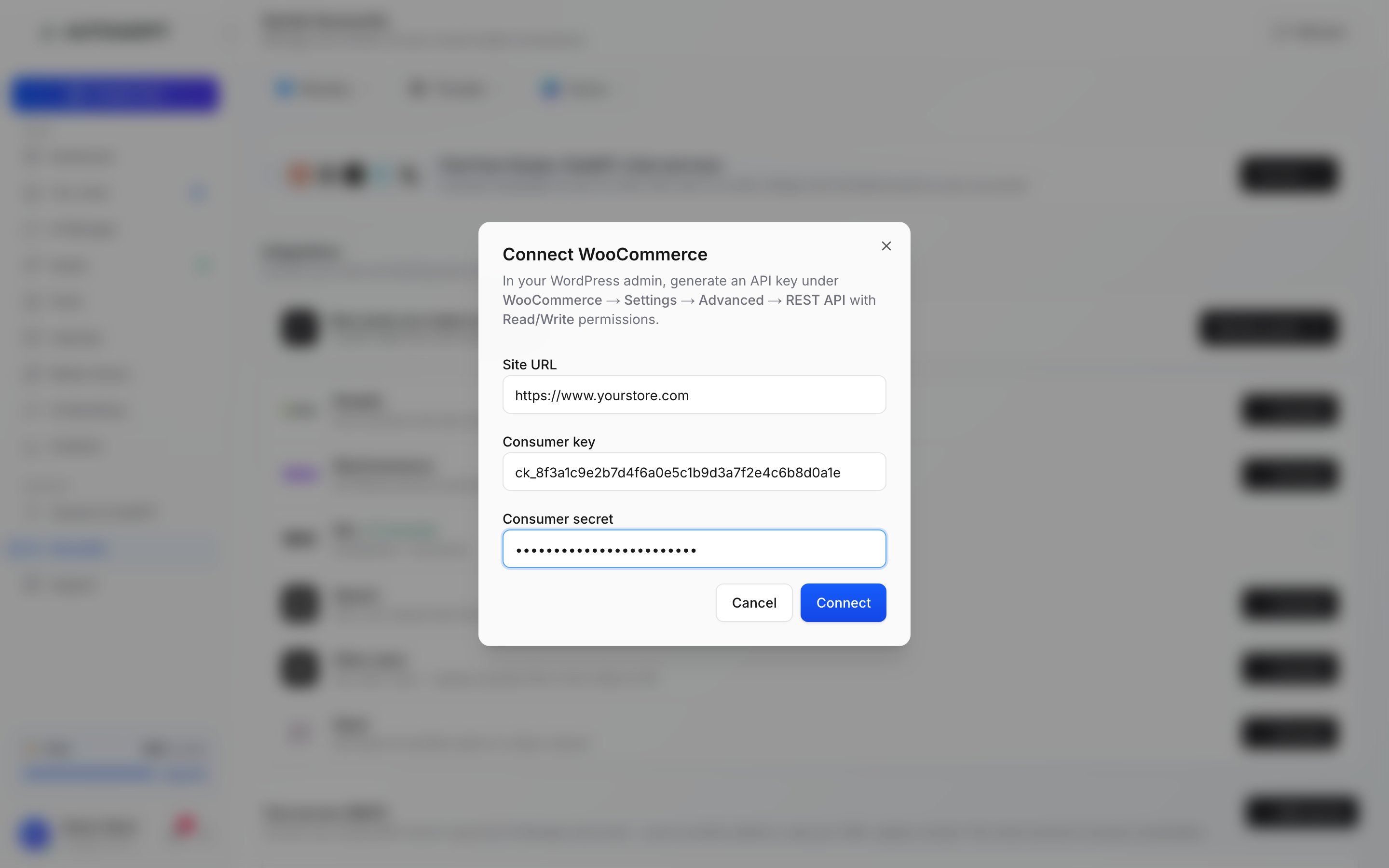
Connect WooCommerce with your site address and API key (example values)
Troubleshooting
To disconnect later, delete the key under WooCommerce → Settings → Advanced → REST API, or click Disconnect in Autoadify.