

Choose how to connect
Any column names work. The file only needs a product name; a photo, price and link make much better posts.
Steps: upload a file
1
Open the connect dialog
Go to Your store (or Accounts → Integrations) and click Connect next to Other store.
2
Add your shop
Enter your Shop web address (for example
https://www.yourstore.com) and, optionally, the Shop name.3
Choose your file
On Upload a file, click Choose a product file and pick your export.
4
Check the columns
The AI matches your columns to Name, Price, Image, Product link, Description and Stock. Fix any that look wrong; the preview updates as you go.
5
Import
Check the preview (how many products, and how many were skipped), then click Connect & import.
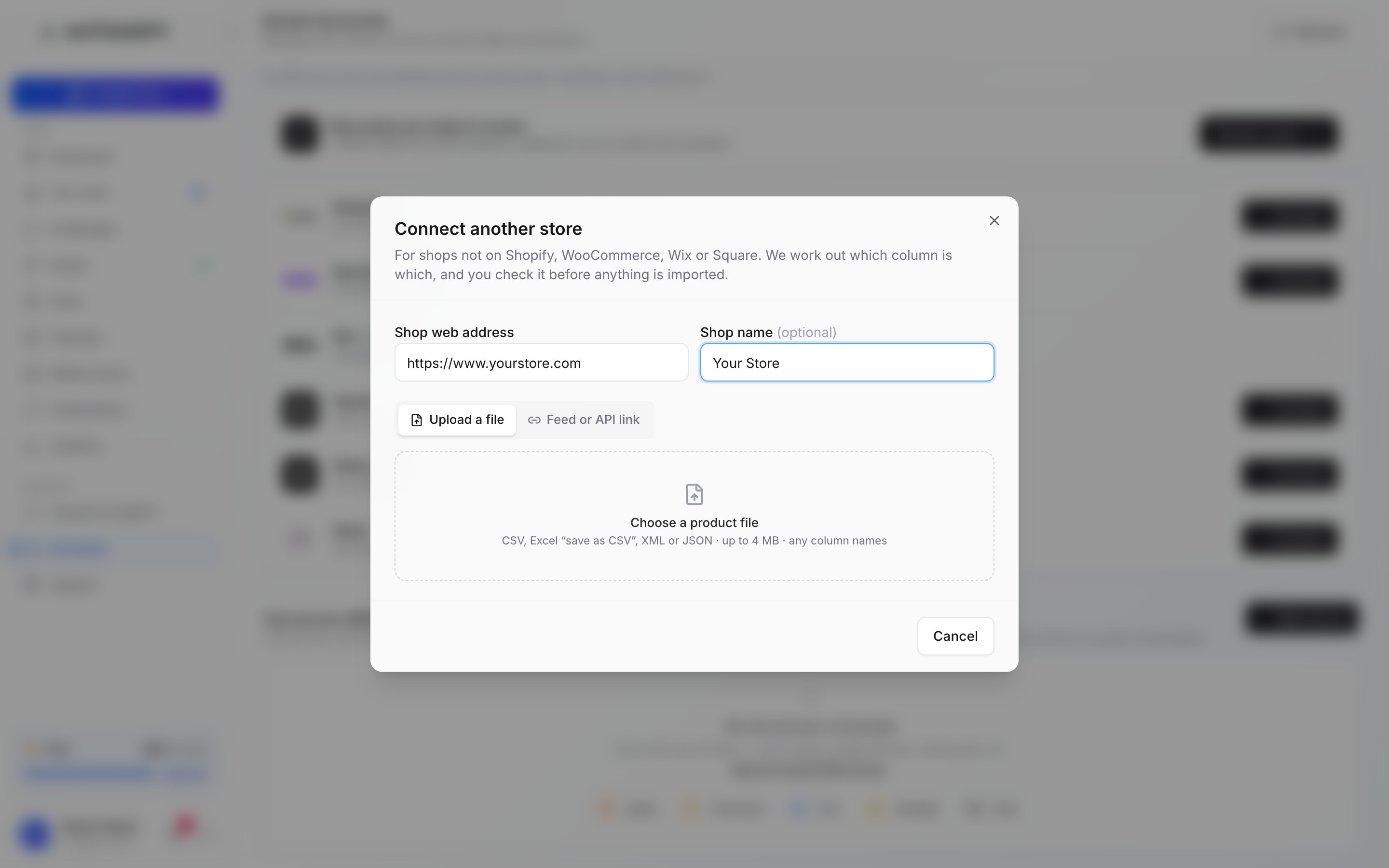
Upload a file: shop address, name and your product file
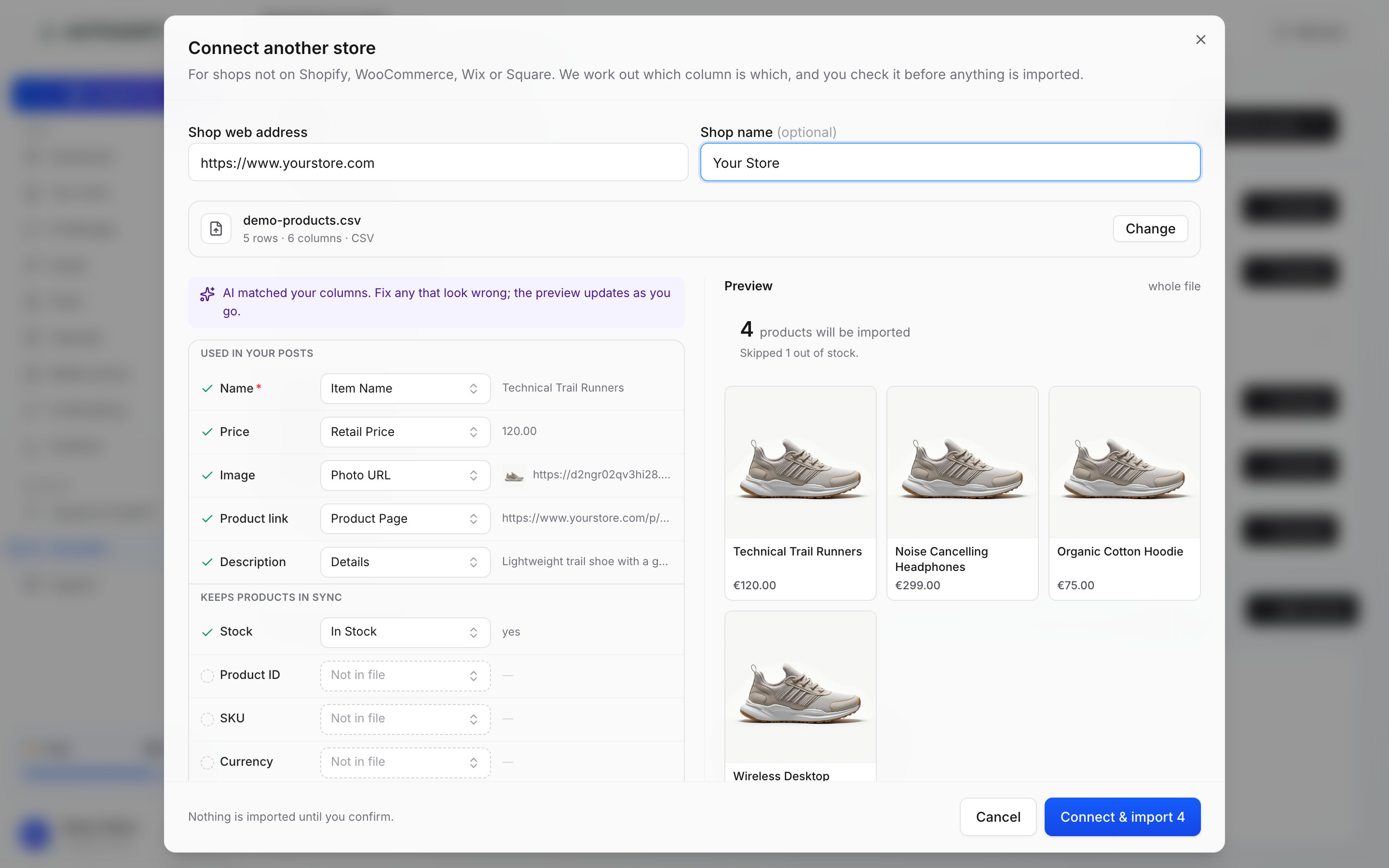
Review: the AI matched every column; 4 products will be imported, 1 skipped as out of stock
Steps: feed or API link
1
Open Other store and add your shop
As above: Connect next to Other store, then your shop address and name.
2
Paste the link
Switch to Feed or API link and paste the address, for example
https://www.yourstore.com/feeds/google-shopping.xml.3
Add an API key (if needed)
If your API needs a key, click Needs an API key?. Keep the header name (usually
Authorization) and paste the value, for example Bearer your-key.4
Read and check
Click Read products, check the column matching and preview, then Connect & import.
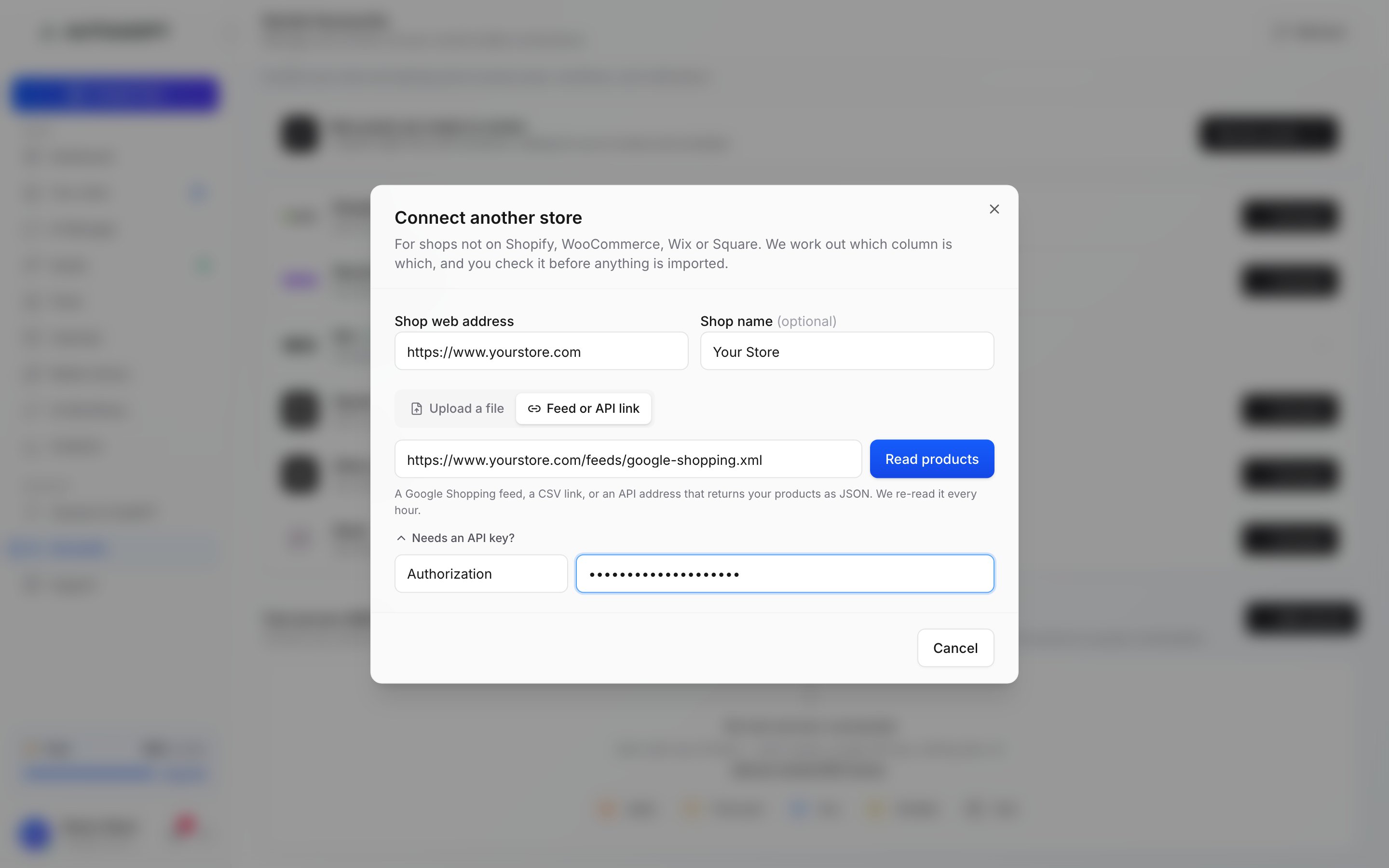
Feed or API link with an API key (example values)
Columns we look for
Good to know
- Nothing is imported until you confirm. A file is read in your browser; only its header and first rows are used to match columns.
- Out-of-stock products are skipped when a Stock column is matched.
- Limit: up to 2,000 products per store, those with photos first.
- Image links must be public (open in a browser without logging in), or the photos won’t load in posts.
- Set a Currency column if your prices aren’t in euros, so captions show the right symbol.