

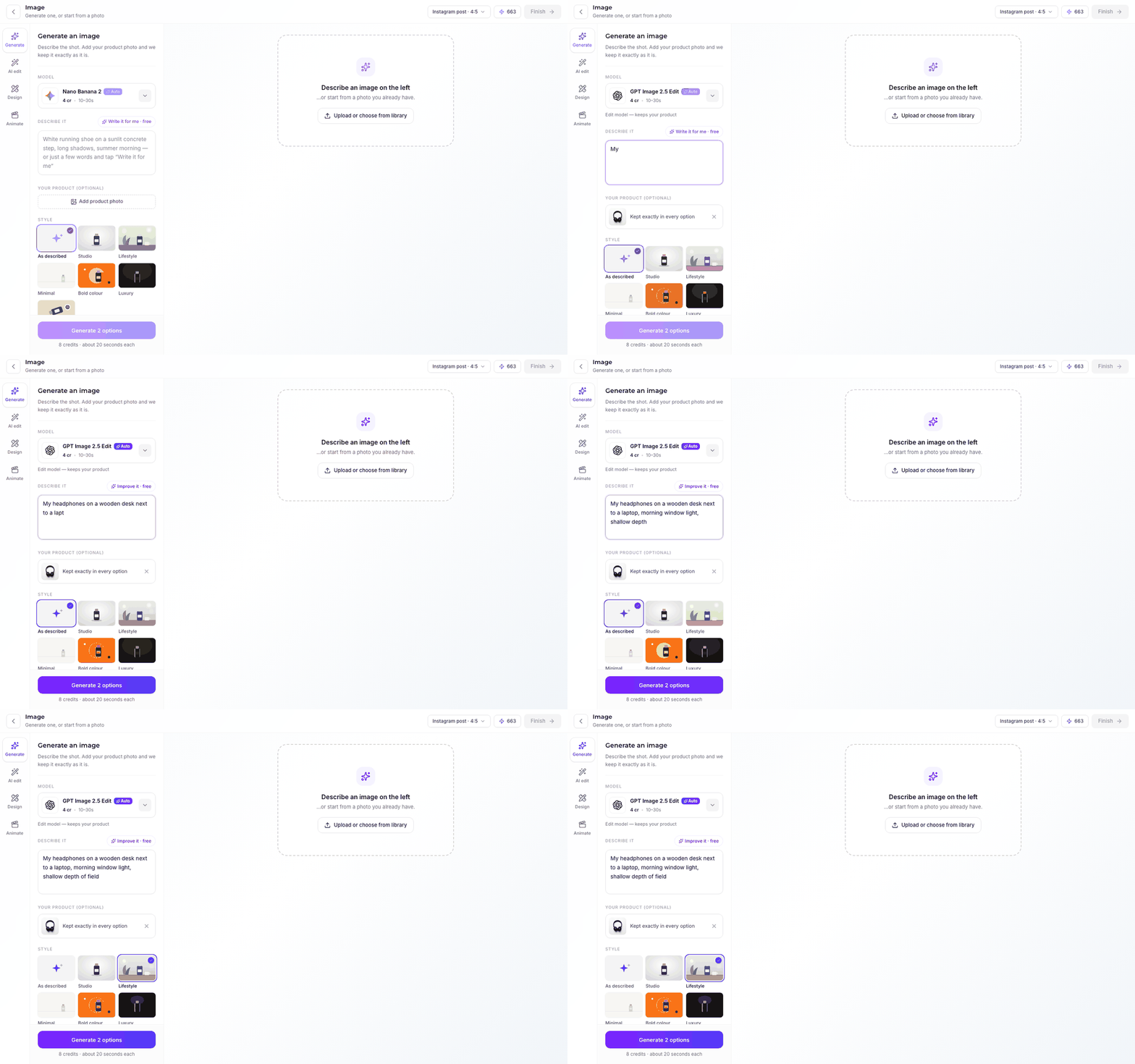
Add your product photo, describe the shot and pick a style. The button shows the price before you generate.
Get started
1
Open the image tool
In Studio, choose Image at the top, or click Product photo, Lifestyle shot or Flat lay.
2
Add your product (optional)
Under Your product, pick a photo from your store or library. It is kept exactly as it is in every option.
3
Describe the shot
Say what you want, for example My trail shoe on a wet forest path at sunrise, low angle.
4
Pick style, size and how many
Choose a style, a size, and 1, 2 or 4 options. The button shows the total cost (about 4 credits per option) and roughly how long each takes.
5
Generate and choose
Results appear on the right. Keep the best, edit it, or click Save & finish.
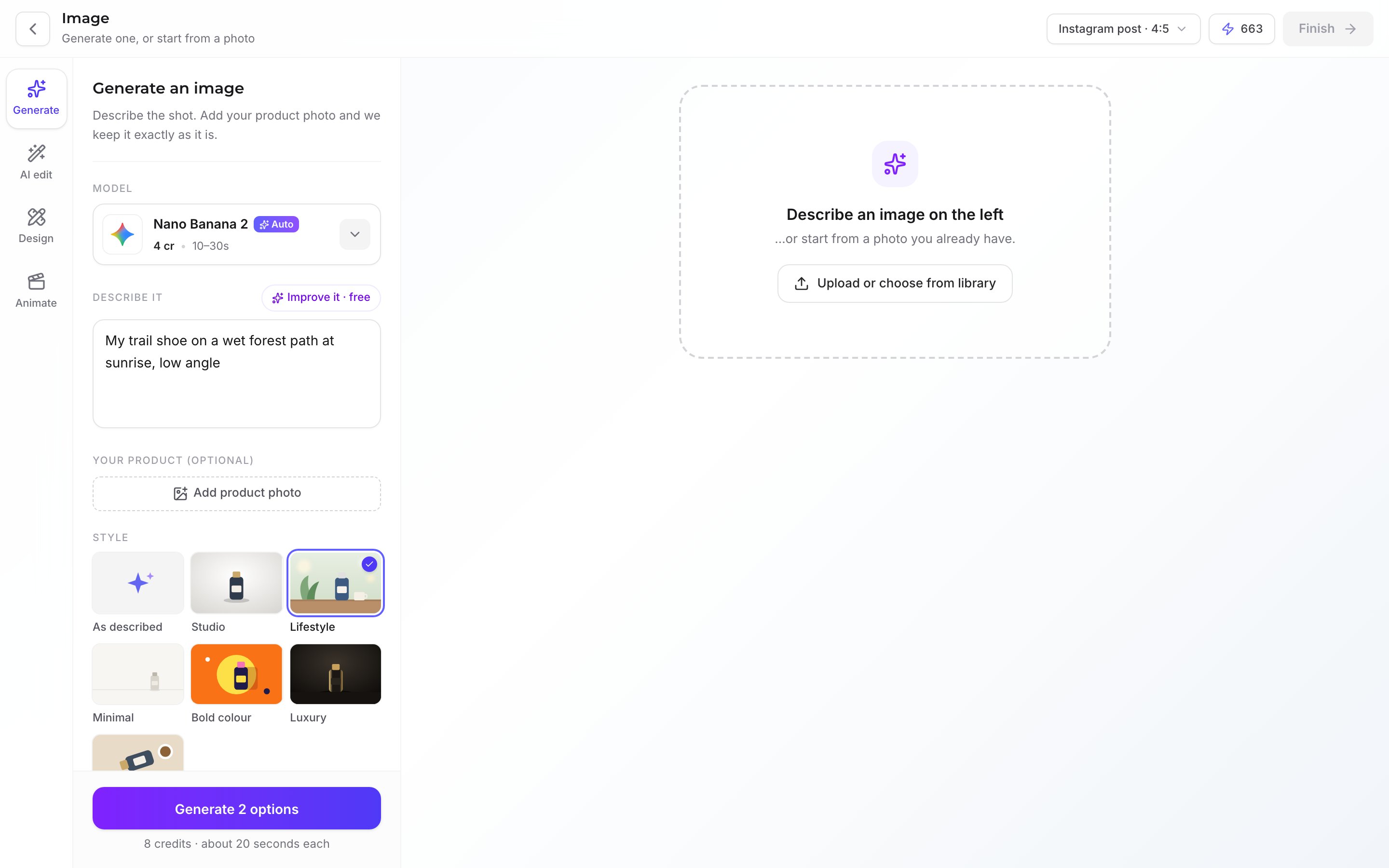
The image tool
Styles
Sizes
You can crop to every other platform size for free on the Finish screen.
Writing a good prompt
- Say where, when and how it’s lit: on a marble bathroom shelf, morning window light.
- Name the angle: close-up, low angle, top-down, three-quarter view.
- Keep text out of the image. Add headlines and prices afterwards in Design; it’s free and the spelling is always right.
- Tap Improve it (free) above the box to turn a short idea into a detailed prompt.